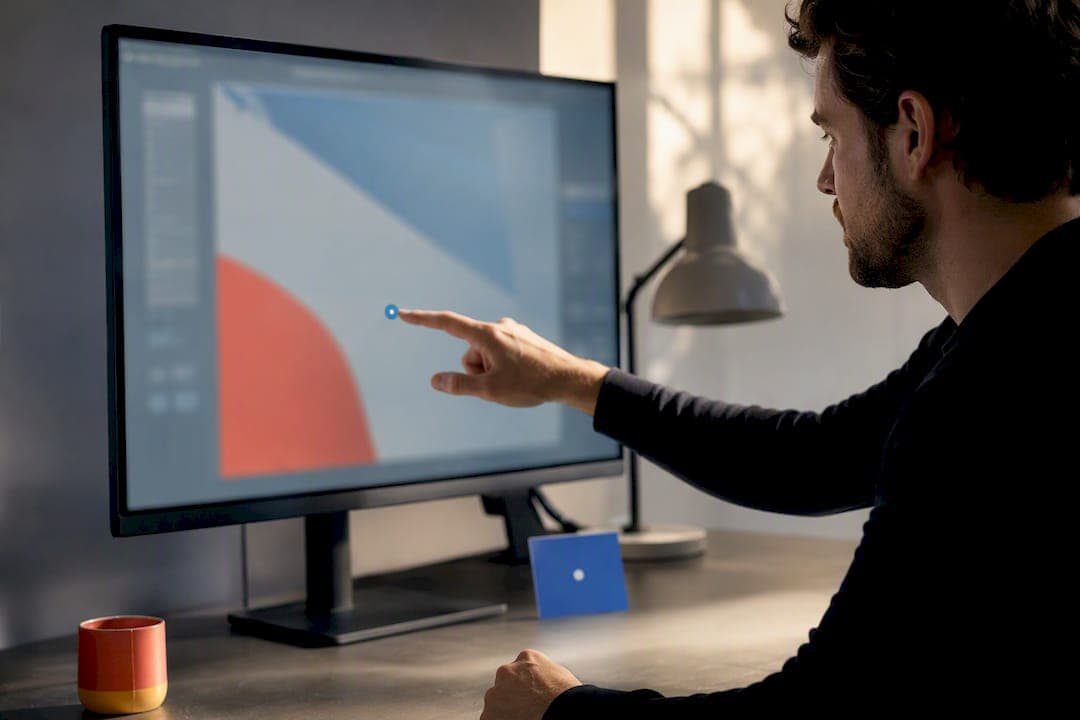
Pinning comments on an image means anchoring a short, location-specific note to a pixel or region so reviewers can point at exactly what to change. Use it for UI reviews, creative feedback, and visual QA, anywhere "make it pop" or "fix the button" leaves too much room for guesswork. The fastest path: capture the image, drop a pin where the problem lives, and share a guest link so anyone can respond without creating an account.
TL;DR:
- Responsive anchoring with percentage-based positioning ensures pins stay attached to elements across different screen sizes, unlike fixed pixel pins that drift.
- Guest links enable outside reviewers to comment instantly without creating accounts, significantly speeding up feedback processes compared to requiring sign-ups.
- Combining threaded replies, version control, and webhook integrations reduces feedback friction by streamlining communication and automating task creation.
- Limiting pins per image and matching pin types to specific issues improve review clarity and accelerate issue resolution.
- Usepinhub offers flat-priced plans with unlimited guest reviewers and features like AI summaries, making it cost-effective for teams managing frequent, collaborative feedback.
Table of Contents
- How Do You Pin a Comment on an Image?
- Pixel Pins vs. Responsive Anchors: Which One Do You Need?
- What Collaboration Features Actually Reduce Feedback Friction?
- Can You Automate What Happens After a Comment Is Pinned?
- What Are the Best Practices for Precise Visual Feedback?
- How Pinhub Puts This Workflow Into Practice
- Why Anchored Comments Beat Long Feedback Threads
- Get Precise Feedback Without the Guesswork
- Sources
- FAQ
How Do You Pin a Comment on an Image?
The workflow behind pinning comments on images follows a consistent pattern whether you're reviewing a landing page mockup or a client's product photo. Get the steps right once, and every review after that moves faster.
- Capture the visual. Upload a screenshot, pull in a Figma frame, or use a browser extension to grab a live webpage. Each method works, but browser capture saves a step when you're reviewing something already published, a point covered in more depth in this guide to annotating a website for team collaboration.
- Place the pin. Click a single point for a precise issue like a typo or a color mismatch, or draw a region for anything spanning a layout area. Add a short, specific instruction, not a vague reaction, and tag it with a status like "needs fix" or "question."
- Share for review. Generate a guest link for anyone outside your workspace, or invite teammates directly with edit or comment permissions. Set the permission level before sending so external reviewers see only what you intend.
- Track and close the loop. Resolve comments as they're addressed, check version history to compare what changed, and export an annotated snapshot when it's time to hand work off to development.
That four-step loop is the backbone of most image annotation tools worth using, and it works whether you're managing one designer's feedback or thirty client comments on a single mockup.
Pixel Pins vs. Responsive Anchors: Which One Do You Need?
Not all pinned comments behave the same way once a design changes size or shape, and this is where a lot of feedback tools quietly fail. A pixel-based pin sits at a fixed coordinate. That works fine for a static screenshot, but it drifts the moment the underlying layout resizes or reflows.
Percentage-within-element anchoring solves that by storing the pin's position relative to the element it's attached to, not the raw pixel grid. The Proofing Pins WordPress plugin uses exactly this approach, capturing a viewport screenshot while anchoring the comment against the clicked element itself, so the pin follows that element across screen sizes instead of floating off into blank space.
Region shape matters too:
- Point pins work best for a single word, an icon, or a color value.
- Rectangle regions suit layout issues that span a section, like spacing or alignment problems.
- Polygon regions, the kind supported in tools like VGG Image Annotator and Labelme, handle irregular shapes such as a logo mark or a curved graphic element.
Pro Tip: Bake a screenshot into the pin at the moment you create it, even if you're also storing an element-relative anchor. That way the reviewer sees exactly what you saw, even if the live page changes before anyone responds.
What Collaboration Features Actually Reduce Feedback Friction?
Good anchoring only solves half the problem. The other half is getting the right people to respond without adding steps that make them give up halfway through.
- Guest links let outside reviewers, like a client or a contractor, comment without registering for an account, which speeds up response time considerably compared to sending an invite and waiting for a signup.
- Accounts trade some of that speed for an audit trail, useful when you need a clear record of who said what and when.
- Threaded replies keep a conversation about one pin contained instead of scattering across email, Slack, and a shared doc. Resolving a thread once the fix is confirmed works like checking off a task, and platforms with role-based access, a pattern documented in projects like CVAT, extend that further by controlling who can resolve versus who can only comment.
- Version control lets you compare pin positions between drafts, so you can confirm a flagged issue was actually addressed rather than just assuming it based on a new file being uploaded.
For teams juggling recurring client reviews, a workflow that actually closes the feedback loop usually combines all four of these rather than relying on just one.
Can You Automate What Happens After a Comment Is Pinned?
A pinned comment that sits unread in a review tool does no one any good. Webhooks close that gap by pushing pin activity into the places your team already works, making it easier to integrate feedback into your overall content workflow with tools like WOVA.
- A pin_created webhook can POST a JSON payload with coordinates, comment text, author details, and a screenshot URL, the same pattern documented in ActiveCollab's webhook system.
- Routing that payload through Zapier or Make can automatically create a task in Trello or Asana, so feedback becomes a tracked to-do instead of a comment someone has to remember to check.
- Posting the same event to a Slack channel keeps designers and reviewers aware of new feedback in real time, without anyone refreshing a tab.
- Export options matter for handoff too: structured JSON preserves coordinates and attributes for developers, while a baked-in annotated screenshot gives anyone a quick visual reference without opening the original tool.
What Are the Best Practices for Precise Visual Feedback?
The difference between a review that takes an hour and one that drags for a week usually comes down to how the comments are written, not the tool used to write them.
- Be directive, not descriptive. "Increase padding to 16px" gets fixed faster than "this feels cramped."
- Match pin type to the issue. Region pins suit layout and spacing problems; point pins suit micro-copy, color values, and single-element fixes.
- Limit pins per image. A screenshot buried under forty overlapping pins becomes harder to parse than the original design flaw. Group related issues into one region comment instead of five separate points.
- Use tags and naming conventions. Marking comments as "blocker," "nice-to-have," or "question" lets reviewers triage without reading every thread top to bottom.
Pro Tip: If you're reviewing the same screen across multiple rounds, name your versions by date or milestone (e.g., "v3, post client call") rather than "final" or "final_v2." It sounds small, but it saves real confusion three rounds later.
For a deeper look at keeping annotations short and specific, this breakdown of annotating screenshots covers phrasing patterns that cut back and forth significantly.
How Pinhub Puts This Workflow Into Practice
Pinhub builds the workflow above into a single tool rather than stitching together a screenshot app, a comment thread, and a project tracker. Every pin is anchored to the exact point clicked on the image, guest reviewers can respond without creating an account, and version history lets you compare feedback across drafts without losing track of what was already resolved.
A typical starter workflow looks like this:
- Capture: upload a screenshot, import a Figma frame, or grab a live page with the browser extension.
- Pin: drop a point or draw a region, write the note, and tag its status.
- Share: send a guest link, no account required for the reviewer on the other end.
- Collect: let feedback accumulate as threaded replies tied to each pin.
- Resolve and export: check off addressed comments and pull an AI-generated summary or annotated export for handoff.
That AI summary matters more than it sounds. Instead of scrolling through forty comments before a stand-up meeting, a team lead can scan a generated list of open items sorted by status, cutting review meetings down to the decisions that actually need discussion.
Why Anchored Comments Beat Long Feedback Threads
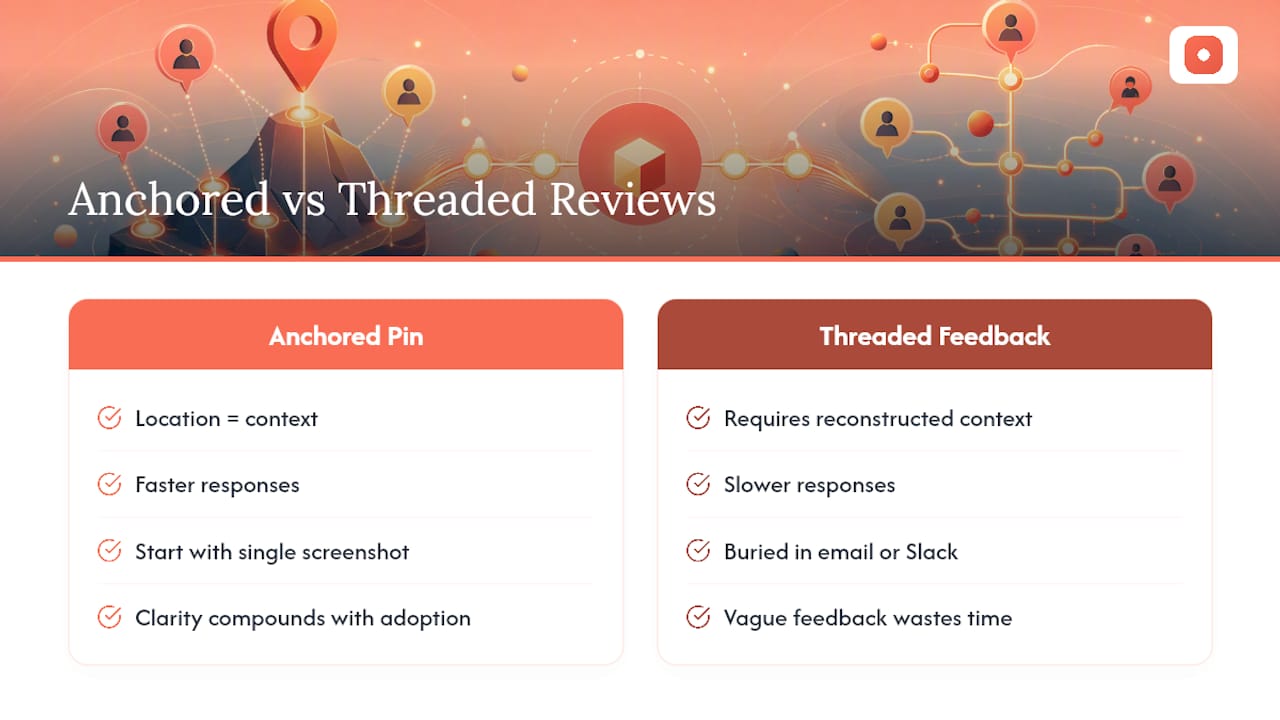
Vague feedback wastes more time than bad design. A comment buried in an email chain or a Slack thread forces the reader to reconstruct context: which screen, which button, which version. An anchored pin skips that entirely, the location is the context.
If you've never tried it, start small: share a guest link on a single screenshot and watch how fast responses come back compared to your usual review process. The clarity compounds once your whole team adopts it. For workflows beyond the basics, Pinhub's guides cover version control, folder organization, and AI summaries in more depth.
— Pinhub
Get Precise Feedback Without the Guesswork
This platform gives you pixel-anchored comments, unlimited guest reviewers with no account required, and flat pricing per workspace instead of per seat, so a growing team doesn't get penalized for adding more reviewers. That matters most for agencies and product teams juggling client feedback across dozens of screens a week, where per-seat pricing on other tools quietly adds up.
Beyond pinned comments, the platform includes version history, Figma import, AI-generated summaries, and password-protected sharing for client work. The Free plan works for solo or low-volume use, while Pro runs $19 per month or $180 per year, and Team runs $39 per month or $384 per year for larger groups needing more members and unlimited screenshots. If your current review process still runs on email attachments and vague comments, upload your next screenshot to Usepinhub and share a guest link to see how fast a round of feedback actually closes.
Sources
For technical detail beyond this workflow, review VGG Image Annotator's documentation on region shapes, or explore Labelme's export formats on GitHub.
- VGG Image Annotator (VIA)
- labelme (GitHub)
- Proofing Pins — WordPress plugin
- ActiveCollab — webhooks documentation
FAQ
What Does It Mean to Pin a Comment on an Image?
It means attaching a short note to a specific pixel or region of an image so reviewers can identify exactly what needs attention instead of describing a location in words.
Do Reviewers Need an Account to Leave Pinned Comments?
Not with tools built around guest access. Usepinhub lets guest reviewers comment through a shared link without creating an account, which speeds up client and stakeholder feedback.
What's the Difference Between Pixel and Responsive Anchoring?
Pixel anchoring fixes a pin at an exact coordinate, which can drift if the layout changes. Responsive, percentage-within-element anchoring, the method used in tools like Proofing Pins, keeps the pin attached to its element across screen sizes.
Can Pinned Comments Connect to Slack or Project Management Tools?
Yes. Webhooks can push pin-created events to Zapier, Slack, or task boards, automatically creating tasks or alerts from a single comment, following the pattern documented in ActiveCollab's webhook system.
How Much Does Usepinhub Cost?
Usepinhub offers a Free plan, along with Pro at $19 per month or $180 per year, and Team at $39 per month or $384 per year, billed per workspace rather than per seat.