
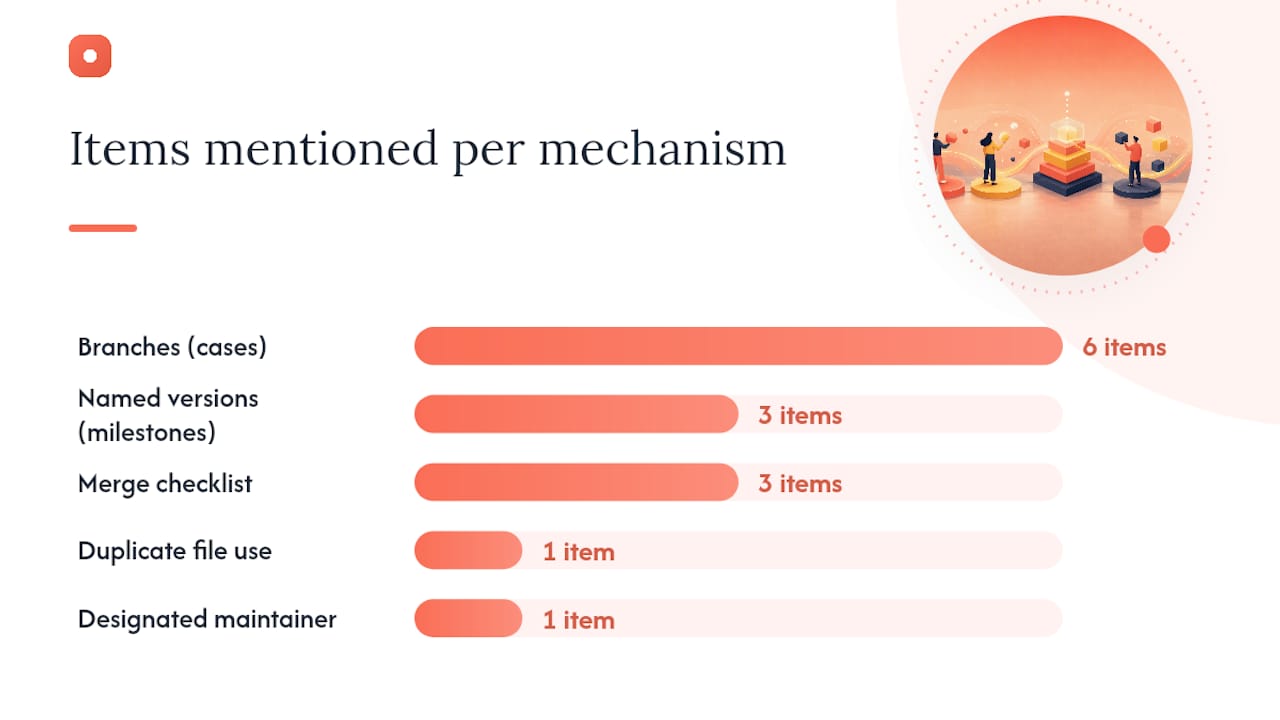
Use branches for isolated work, named versions for milestones, and a short merge checklist before every publish. That three-part rule covers the vast majority of what teams need from Figma version control, and the rest of this guide fills in the details.
Here is the operational checklist to start with today:
- Use a branch when the work is risky, large, or needs stakeholder sign-off before it touches the main file (library refactors, breaking component changes, localization passes).
- Create a named version at every meaningful milestone: before a dev handoff, after a major library publish, and at the start of any significant rework. Write the "why" in the description, not just the "what."
- Duplicate a file only for archiving a frozen snapshot before a major overhaul, not as a substitute for branches or named versions.
- One designated maintainer creates named versions and merges branches. Contributors open branches; they do not merge their own work.
- Every merge must include a brief description of what changed, a link to the relevant ticket, and confirmation that the change was tested in at least one consumer file.
Practitioners confirm that treating named versions as planning and communication tools, rather than automatic saves, keeps version history readable and meaningful.
Pro Tip: Set a team norm that any named version without a description gets deleted. An undescribed version is noise, not a record.
Key Takeaways
Effective Figma versioning requires three habits: branch for isolation, name versions at milestones, and run a merge checklist before every publish.
| Point | Details |
|---|---|
| Branch selectively | Use branches primarily for isolated, risky, or large changes; named versions are suitable for most milestone tracking. |
| Name every milestone | Create a named version before dev handoff, after every library publish, and at sprint start. |
| One maintainer merges | Contributors open branches; only the designated maintainer merges and publishes. |
| Sync with engineering | Align library publish dates with sprint boundaries and keep tokens in a shared repository. |
| Usepinhub for reviews | Pixel-anchored feedback in Usepinhub ties reviewer comments to exact design versions, speeding merge approvals. |
Table of Contents
- What are Figma branching and versioning, and how do they differ?
- Which use cases actually benefit from branching in Figma?
- What naming conventions should you use for branches and versions?
- How should your team handle branch merges and conflicts?
- How do you publish design libraries safely and coordinate with engineering?
- Who should control versioning, merging, and publishing in your team?
- How do you run this workflow in a single sprint?
- Copyable templates for branch names, merges, and release notes
- How do review tools help you manage versioned feedback?
- The versioning trade-offs teams rarely talk about
- Usepinhub makes branch reviews faster and clearer
- Sources
- FAQ
What are Figma branching and versioning, and how do they differ?
Figma gives you three distinct mechanisms for tracking and protecting design work, and mixing them up is the most common source of confusion.
Branches are parallel copies of a file where you can make changes without affecting the main file. When the work is ready, you merge the branch back. Figma built branching specifically for scaled collaboration, describing branches as "exploratory spaces" that let teams try ideas safely. Branching is available on Organization and Enterprise plans only.
Named versions are manual snapshots you create inside a file's version history. They sit on top of Figma's automatic checkpoints and let you label a moment in time with a title and description. Figma records automatic checkpoints at regular intervals, and restoring a previous version is non-destructive: Figma creates a new checkpoint for both the restored state and the prior state, so nothing is permanently lost.
Auto-checkpoints are Figma's background saves. They are useful for recovering from accidents but not for communicating intent. Do not rely on them as your version history strategy.
How does this compare to code version control? The differences matter:
- Code uses commits with messages, branches, pull requests, and tags. Figma has no commit model. Named versions are the closest analog to a tagged release.
- Semver (major.minor.patch) is the standard in code. Figma has no built-in version numbering. You apply your own scheme through naming conventions.
- Figma branching does not support rebasing, cherry-picking, or automated conflict detection the way Git does. Conflict resolution is manual and visual.
If your team is on a Professional plan or below, branching is not available. In that case, named versions and disciplined file duplication for major milestones are your primary tools.
Pro Tip: *Before your team upgrades to Organization for branching access, audit whether your current pain points are actually solved by branches or by better naming discipline.
Which use cases actually benefit from branching in Figma?
Branches add review overhead, so use them where isolation genuinely matters. Here are the use cases where branching pays off, and the recommended tactic for each.
- Library refactor: Use a branch. A component rename, token restructure, or layout grid change affects every consumer file. Work in a branch, test in consumer files, get sign-off, then merge. Expected lifecycle: one to two weeks.
- Feature experiment: Use a branch when the design direction is uncertain and you need stakeholder feedback before committing. If the experiment is small and low-risk, a named version on the main file is often enough.
- Dev handoff freeze: Create a named version (not a branch) labeled something like
v2.3 — Handoff to Engineering, Sprint 14. This gives developers a stable reference point without creating merge overhead. - Stakeholder review: Use a branch or a named version depending on scale. For a single screen change, a named version works. For a full flow redesign requiring approval before it lands in the main file, a branch is cleaner.
- Localization or RTL work: Use a branch. These changes often touch dozens of components and text layers. Keeping them isolated until QA is complete prevents partial states from reaching the main file.
When branches add overhead without benefit: small copy fixes, single-component tweaks, and color adjustments that a reviewer can approve in seconds. For these, create a named version after the change and move on.
Pro Tip: Keep branches short-lived. A branch open for more than two weeks tends to drift from the main file, making the eventual merge painful. Set a two-week maximum as a team norm and schedule a check-in if a branch is approaching that limit.
What naming conventions should you use for branches and versions?
The recommended rule in one sentence: use a prefix that signals the type of work, a short scope description, a ticket ID or owner, and a sprint or date.
Branch naming templates
Follow this pattern: [type]/[scope]-[ticket-or-owner]-[sprint-or-date]
feature/button-states-DS-142-s24refactor/color-tokens-DS-201-s25hotfix/nav-overflow-DS-188-2026-06experiment/homepage-hero-v2-jsmithrtl/checkout-flow-DS-210-s26
Keep branch names lowercase, hyphen-separated, and under 50 characters. Anyone reading the branch list should know immediately what the branch is for and who owns it.
Named version templates
Named versions should read like a changelog entry:
v1.0 — Initial component library, Q1 2026v1.1 — Button states updated, DS-142v2.0 — Token architecture refactor, breaking changeHandoff — Sprint 14, checkout flowArchive — Pre-rebrand snapshot, March 2026
Semver vs. a lighter design scheme
Semantic Versioning (major.minor.patch) is the standard in code and works well for communicating breaking vs. non-breaking changes. For design files, the patch level rarely adds value. A practical hybrid: use major.minor in your named versions to signal whether a change is breaking (major) or additive (minor), and keep the full semver (major.minor.patch) in your code token repository where engineers consume it.
Practitioners recommend treating named versions as milestones rather than exhaustive logs. Write the "why" in the description field, not just the version number. A description like "Bumped to v2.0 because token naming convention changed from color-primary to color.primary — all consumer files need a re-link" is far more useful than v2.0 alone.
Pro Tip: Keep a dedicated "Changelog" page inside your Figma file. Each entry links the named version to the ticket ID and the decision behind it. This makes design version history human-readable without requiring anyone to dig through the version history panel.
How should your team handle branch merges and conflicts?
The recommended workflow is short-lived feature branch → review request → merge checklist → merge. Keep it that simple.
Merge checklist
Before any branch is merged, the reviewer confirms:
- The branch description explains what changed and why.
- A ticket ID or Jira/Linear link is included.
- The change was tested in at least one consumer file (a product file that uses the library).
- Component names, layer names, and variant properties follow the team's naming convention.
- Accessibility checks are complete: color contrast meets WCAG AA, touch targets are sized correctly, and focus states are present.
- Design tokens and their code counterparts are in sync.
- Any deprecated components are marked and a replacement is noted.
Conflict resolution rules
Figma's merge process surfaces visual conflicts when the same layer was edited in both the branch and the main file. The rules to follow:
- Prefer manual selection. Review each conflict individually. Never auto-accept all branch changes without checking what changed in main.
- When to revert. If a branch has drifted significantly and the conflicts are too numerous to resolve cleanly, revert the branch to a named version checkpoint and re-apply changes selectively.
- Who merges. Only the designated library maintainer or design lead merges branches. Contributors open branches and submit review requests; they do not merge their own work.
Workflow comparison: branch vs. named version
| Scenario | Recommended approach | Merge/review needed? |
|---|---|---|
| Breaking component change | Branch | Yes, full checklist |
| Additive new component | Branch or named version | Yes, lightweight review |
| Copy fix or spacing tweak | Named version | No formal review |
| Dev handoff snapshot | Named version | No merge needed |
| Full token refactor | Branch | Yes, full checklist |
Pro Tip: Use Figma's built-in review request feature to notify the maintainer when a branch is ready. A review request without a description of what changed is the same as no review request at all. Make the description mandatory in your team process.
How do you publish design libraries safely and coordinate with engineering?
Publish on a cadence that matches your sprint cycle, and separate minor updates from breaking changes.
Minor updates (additive changes, new variants, visual refinements that do not break existing usage) can publish at the end of any sprint. Notify the team in your design channel with a one-line changelog entry.
Major updates (renamed components, changed prop structures, removed variants, token renames) require a deprecation window. The recommended minimum: announce the breaking change one sprint before it publishes, keep the old component available with a "deprecated" label for one additional sprint, then remove it.
Publish checklist
- Test the updated component in at least two consumer files before publishing.
- Check Figma's component analytics (Organization/Enterprise) to see how widely the component is used. High-usage components need more lead time.
- Write a changelog entry: what changed, why, and what teams need to do (re-link, update props, nothing).
- Post the changelog in your team's Slack or communication channel before publishing.
- Create a named version in the library file immediately after publishing:
v2.1 — Published, Sprint 15.
Figma's component management guidance specifically recommends testing in consumer files, labeling breaking changes, and using analytics to guide rollout timing.
Syncing with engineering
Align your library publish dates with sprint boundaries so engineers always have a stable design reference at the start of a sprint. Keep your design tokens in a shared repository (Style Dictionary, Tokens Studio) where both the design file and the codebase consume the same source. When a major library version publishes, bump the token package version in code at the same time. For teams managing web requirements and dev alignment, this single-source-of-truth approach prevents the common drift where design and code diverge silently over several sprints.
Pro Tip: Create a stable "handoff artifact" named version in the library file at the start of every sprint. Engineers reference this version, not the live file, so mid-sprint changes do not break their implementation work.
Who should control versioning, merging, and publishing in your team?
Define roles before you set up the workflow, not after a conflict occurs.
Recommended role definitions:
- Library maintainer: Creates named versions, merges branches, publishes library updates, and owns the changelog. One per library, two maximum for large systems.
- Contributor: Opens branches, implements changes, submits review requests. Cannot merge their own branches.
- Viewer/stakeholder: Reviews designs in branches or shared links. Cannot edit, branch, or publish.
- Design lead: Approves major version bumps and breaking changes. Signs off on the merge checklist before the maintainer executes the merge.
Plan-level constraints
Branching requires an Organization or Enterprise plan. On Professional plans, contributors work directly in the main file, which makes named versions and a strict "create a named version before any significant change" norm even more critical. Figma built branching for scaled collaboration on Organization plans, so teams on lower plans need compensating process controls.
Organization and Enterprise plans also include component analytics, which the maintainer should review before every major publish to assess impact.
Governance checklist
- Roles are documented in the team's design system wiki or Notion.
- Access to the library file is restricted to editors who need it. Use password-protected sharing for sensitive or pre-release designs.
- Archive and delete policies are decided up front: archived files move to a dedicated "Archive" project, not the active workspace.
- A single source of truth is declared for each design system (one library file, one token repo).
Pro Tip: For teams using shared spaces across Notion, Miro, or Google Drive alongside Figma, tag milestone versions in both places. A named version in Figma that has no corresponding entry in your project management tool is invisible to engineers and stakeholders who do not live in Figma.
How do you run this workflow in a single sprint?
Single-sentence plan: create a branch at sprint start, implement and test, run the merge checklist at sprint end, then publish a named version for handoff.
Step-by-step sprint workflow
- Sprint kickoff (Day 1) — Maintainer: Create a named version on the main file:
Sprint 15 start — stable. This is your rollback point. - Branch creation (Day 1) — Contributor: Create a branch using the naming convention (
feature/[scope]-[ticket]-s15). Add a description of the planned change. - Implementation (Days 1–8) — Contributor: Work in the branch. Commit progress notes in the branch description as you go. Do not touch the main file.
- Consumer file testing (Day 8) — Contributor: Open two consumer files that use the library. Swap the library reference to the branch and verify nothing breaks.
- Review request (Day 8) — Contributor: Submit a review request with a filled-out merge checklist. Tag the design lead for approval on breaking changes.
- Review (Day 9) — Design lead + Maintainer: Check the merge checklist, review the branch visually, confirm accessibility and token alignment.
- Merge (Day 9) — Maintainer only: Resolve any conflicts manually. Merge the branch. Do not auto-accept all changes.
- Named version + publish (Day 10) — Maintainer: Create a named version (
v2.1 — Sprint 15, DS-142). Publish the library update. Post the changelog. - Handoff named version (Day 10) — Maintainer: Create a second named version:
Handoff — Sprint 15. Engineers reference this version for implementation.
Sprint board checklist (copy into your ticket)
- Named version created at sprint start
- Branch named per convention
- Consumer file test completed
- Merge checklist filled out
- Design lead approval received
- Branch merged by maintainer
- Named version created post-merge
- Library published
- Changelog posted to team channel
- Handoff named version created
Pro Tip: Pair this sprint workflow with a web design project management process that links Figma milestones to your sprint board. When named versions map directly to sprint tickets, engineers always know which design version matches which release.
Copyable templates for branch names, merges, and release notes
Every template below is ready to paste into your workflow.
| Template | Pattern / Example | When to use |
|---|---|---|
| Feature branch | feature/[scope]-[ticket]-s[sprint] → feature/card-hover-DS-142-s15 | New component or interaction |
| Refactor branch | refactor/[scope]-[ticket]-s[sprint] → refactor/color-tokens-DS-201-s25 | Token or structure changes |
| Hotfix branch | hotfix/[scope]-[ticket]-[date] → hotfix/nav-overflow-DS-188-2026-06 | Urgent production fix |
| Named version (milestone) | v[major].[minor] — [description], [sprint/date] → v2.1 — Button states, Sprint 15 | Post-merge library publish |
| Handoff version | Handoff — Sprint [N], [flow name] → Handoff — Sprint 15, Checkout | Dev handoff freeze |
| Archive version | Archive — Pre-[event] , [month year] → Archive — Pre-rebrand, March 2026 | Before major overhaul |
Release note template
Version: v2.1
Date: [date]
Sprint: [sprint number]
Ticket(s): [DS-142, DS-143]
Changed: [What changed and which components]
Breaking: [Yes/No — if yes, describe impact and migration steps]
Action required: [Re-link library / update props / nothing]
Rollback procedure
- Step 1: Open the library file's version history panel.
- Step 2: Locate the named version immediately before the problematic publish.
- Step 3: Restore that version. Figma creates a new checkpoint non-destructively.
- Step 4: Re-publish the library from the restored state.
- Step 5: Notify the team in your communication channel with the rollback reason and the version restored to.
Pro Tip: Keep a dedicated "Changelog" page inside the Figma file itself. Each row lists the version number, date, ticket ID, and a one-line description. This makes design file organization auditable without requiring anyone to open the version history panel.
How do review tools help you manage versioned feedback?
Precise, version-linked feedback cuts review cycles. When a reviewer leaves a comment like "fix the button," the maintainer has no idea which version, which screen, or which state they mean. Pixel-anchored feedback tools solve this by attaching comments to exact coordinates on a specific version of a design.
The workflow improvements are concrete:
- Version snapshots for review: Upload a branch screenshot or export to a review tool at the point you submit a review request. Feedback is anchored to that specific state, not a live file that may have changed.
- Guest reviewers: Stakeholders and clients can leave pinned comments without a Figma account. This removes the friction of account setup for one-time reviewers.
- Automated summaries: AI-generated summaries of all feedback threads give the maintainer a consolidated list of changes to address before merging.
- Threaded resolution as checklists: Each feedback thread becomes a checklist item. The maintainer resolves threads as they address each point, giving contributors and stakeholders a clear view of progress.
For a broader look at how design feedback tools fit into team workflows, the pattern is consistent: the clearer the feedback, the faster the merge.
Pro Tip: Place the review tool step between "review request submitted" and "merge checklist completed." Capture a version snapshot when the review request goes out, collect all feedback in the tool, resolve threads, then run the merge checklist. This sequence keeps feedback tied to the exact design state that was reviewed, not a later revision.
The versioning trade-offs teams rarely talk about
Most versioning guides focus on what to do. The harder conversation is what to give up.
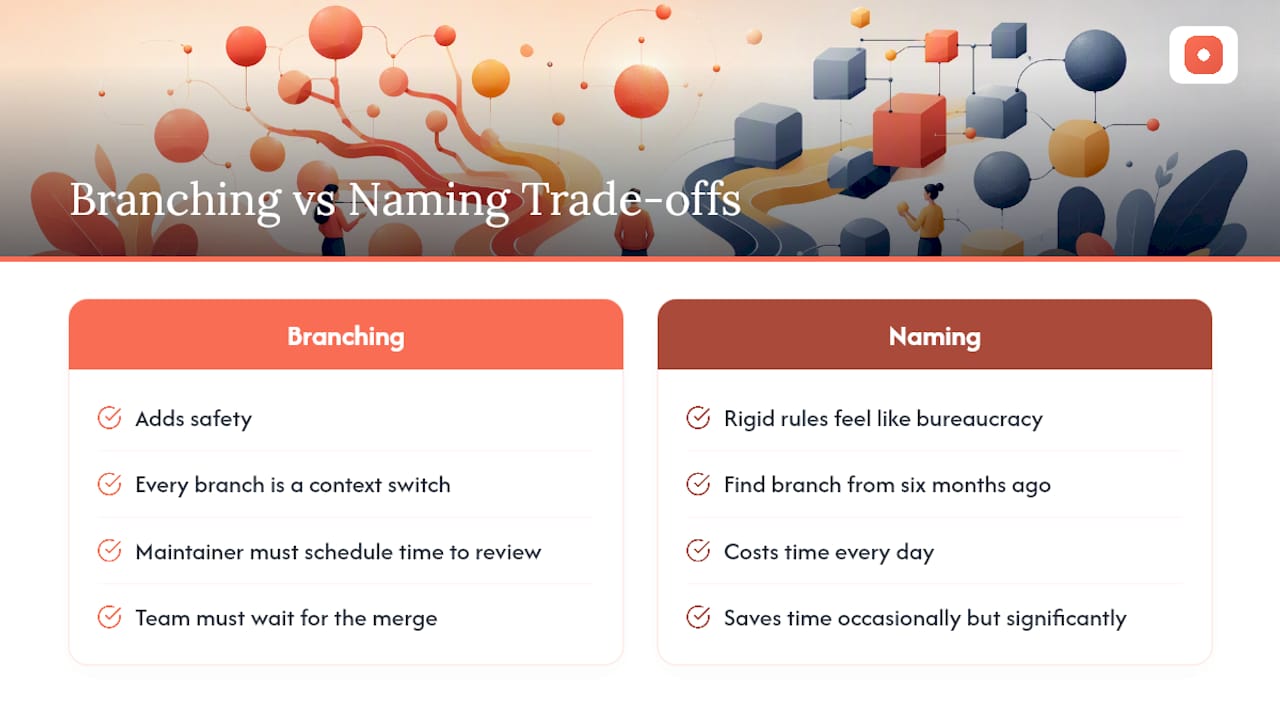
Branching adds safety, but it also adds latency. Every branch is a context switch: the contributor must stay current with changes in main, the maintainer must schedule time to review, and the team must wait for the merge before the work is visible in the main file. For small teams moving fast, that overhead can slow delivery more than the occasional accidental overwrite it prevents. The honest answer is that branching is not always worth it, and teams that branch everything end up with a graveyard of stale branches and a maintainer who is permanently behind on reviews.
The naming convention debate is similar. Rigid naming rules feel like bureaucracy until the day you need to find a branch from six months ago or explain to an engineer why the design file says v1.4 while the codebase says v2.1.3. The discipline pays off unevenly: it costs time every day and saves time occasionally but significantly. Teams that skip naming conventions almost always regret it after their first major refactor.
The trade-off we recommend accepting: invest in naming discipline and named versions unconditionally, and apply branching selectively. A team that names every version well and branches only for risky work will outperform a team that branches everything but names nothing.
For teams scaling to multiple design systems or many contributors, design and UX agencies like Bitrupt often build governance frameworks that formalize exactly these trade-offs, separating contribution workflows from maintenance workflows across system boundaries.
Usepinhub makes branch reviews faster and clearer
When your merge checklist requires stakeholder sign-off, the review step is often where cycles stall. Reviewers leave vague comments in Slack, designers guess at what needs fixing, and the branch stays open longer than it should.
Usepinhub solves this with pixel-anchored feedback: reviewers pin comments directly onto specific areas of a design screenshot, so every piece of feedback is tied to an exact location and version. Guest reviewers participate without creating an account, which means clients and cross-functional stakeholders can review a branch without a Figma seat. Automated AI summaries consolidate all feedback threads into a single list, and each thread resolves as a checklist item so the maintainer always knows what is left to address.
The result is a tighter loop between review request and merge approval. Try Usepinhub on your next branch review at Usepinhub and see how much faster the merge checklist closes.
Sources
- How (and why) we built branching | Figma Blog
- View a file's version history – Figma Learn - Help Center
- Semantic Versioning 2.0.0
- How I Handle Version Control in Figma in 2026 – TheLinuxCode
FAQ
How does versioning work in Figma?
Figma records automatic checkpoints roughly every 30 minutes and lets you create named versions with titles and descriptions at any point. Restoring a previous version is non-destructive: Figma preserves both the restored state and the prior state as new checkpoints.
What is the difference between a branch and a named version in Figma?
A branch is a parallel copy of the file where you work in isolation and then merge back. A named version is a labeled snapshot inside the main file's history. Use branches for risky or large changes; use named versions for milestones and handoffs.
What are the best practices for version control in Figma?
Use branches for isolated, reviewable work; create named versions at every meaningful milestone with a description explaining the "why"; follow a consistent naming convention; and designate one maintainer who controls merges and publishes.
Does Figma branching require a specific plan?
Yes. Branching is available on Organization and Enterprise plans only. Teams on Professional plans should rely on named versions and strict naming discipline to maintain a clear design version history.
How does Usepinhub fit into a Figma versioning workflow?
Usepinhub captures pixel-anchored feedback on design screenshots tied to a specific branch or version, so reviewer comments are always linked to the exact state that was reviewed. This makes the merge checklist faster to complete and reduces back-and-forth before approval.