
TL;DR:
- Password protection adds a layer of security by requiring a password for file access, while encryption conceals file contents from interception. Different platforms facilitate secure sharing through separate channels for links and passwords, often with expiration and revocation options for better control. Zero-knowledge services offer maximum privacy but provide no recovery if passwords are lost.
Password-protected file sharing means adding a password to a shared link or folder so only recipients who know the code can access the contents. Most platforms handle this by letting you upload a file, set a password separately, then share the link and password through different channels. The password never travels in the notification email, which prevents interception. Secure platforms typically back this with AES-256 encryption, so even if someone intercepts the link, the file contents stay locked without the correct password.
Key benefits at a glance:
- Recipients need a password before downloading or viewing any file
- Link expiration dates cut off access automatically after a set time
- Access revocation lets you disable a link instantly without re-uploading
- Passwords travel separately from links, reducing interception risk
- Folder-level protection applies the same password to every file inside
How to set up file sharing password protected on popular platforms
Each major platform handles password protection a little differently. Here is how to get it done on the ones you are most likely to use.
Proton Drive generates end-to-end encrypted sharing links for both individual files and entire folders. To add a password, open the file or folder, click "Share," toggle on password protection, enter your chosen password, and copy the link. You can also set an expiration date and revoke access with one click at any time. Folder-level protection applies the same password to every file inside, which cuts down on repetitive setup.
WeTransfer puts the password field directly in the upload window before you click send. Fill in the password, complete the upload, and recipients must enter it before reaching any file. You can update or remove the password later from your Transfers panel without re-uploading anything.
Jumpshare lets you lock files or folders before or after sharing. In the browser, hover over an item, click the cogwheel icon, and select "Lock." On mobile, tap and hold the item, drag to the More menu, then select "Lock." Passwords must be at least six characters. You can remove the lock at any time from the same menu.
EaseUS LockMyFile works locally on Windows, applying AES encryption to files on your hard drive, USB drives, and network shares. It also triggers an alarm on unauthorized access attempts, which cloud platforms cannot do.
Pro Tip: Use a naming convention for shared folders, such as "ClientName_ProjectDate," so team members can match the right password to the right folder without confusion.
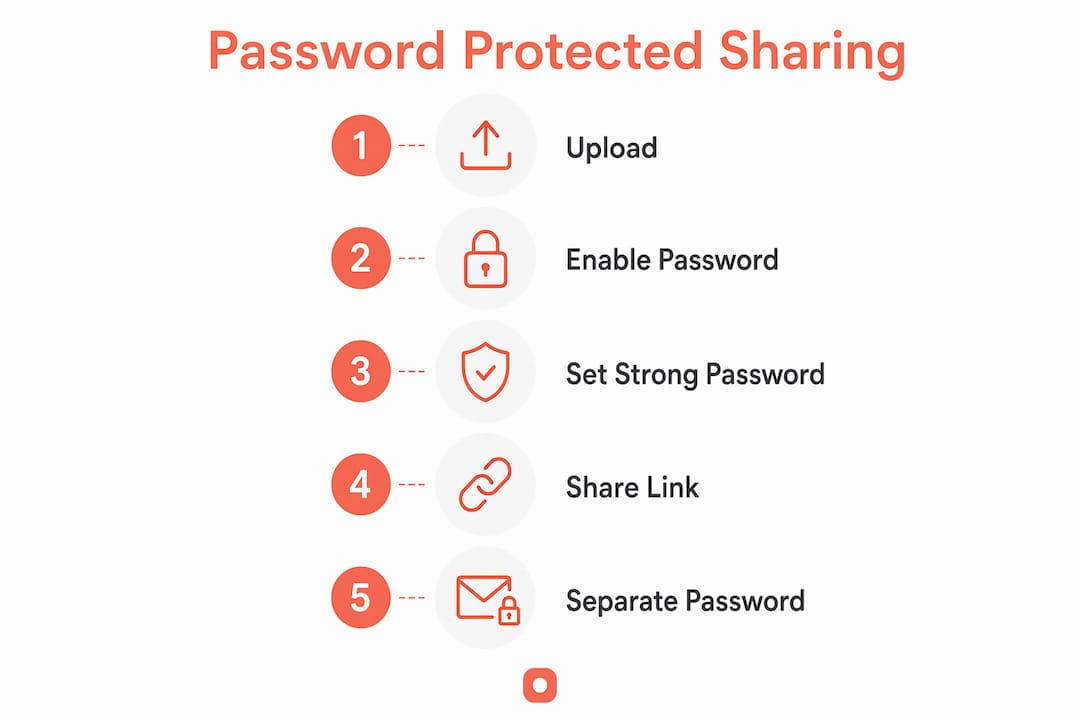
Numbered steps for any cloud platform:
- Upload the file or folder to your chosen platform.
- Open sharing settings and enable password protection.
- Set a strong, unique password (see best practices below).
- Copy the share link.
- Send the link via email and the password via a separate channel, such as a secure messaging app.
- Set an expiration date if access should be temporary.
How to disable password protected sharing on Windows
Windows has a built-in network feature called "Password Protected Sharing" that controls whether other devices on your local network need a Windows account password to access shared folders. This is separate from file encryption.
To turn it off:
- Open the Control Panel and go to Network and Sharing Center.
- Click Change advanced sharing settings in the left panel.
- Expand the All Networks section.
- Under "Password protected sharing," select Turn off password protected sharing.
- Click Save changes.
Key points to keep in mind:
- Disabling this setting only removes the network login requirement. It does not decrypt any encrypted files.
- Only do this on trusted private networks, such as a home setup where all devices belong to you.
- Shared folders on a corporate network should keep this setting on unless IT explicitly approves otherwise.
- File-level encryption from tools like EaseUS LockMyFile or 7-Zip remains fully active regardless of this Windows setting.
Microsoft's documentation covers this setting in detail if you need additional context for your specific Windows version.
How to share a file with password protection
The core workflow is consistent across platforms: upload, protect, then share the link and password separately. Start by choosing a platform that supports password protection natively, such as Proton Drive or WeTransfer. Upload your file, enable the password option in sharing settings, and generate the link. Send the link through one channel and the password through another. Never paste both into the same email or message thread. If you need to update access later, most platforms let you change or revoke the password directly from your account dashboard without touching the original file.

Best practices for creating strong passwords for shared files
A weak password on a shared file is barely better than no password at all. Use at least 12 characters, mixing uppercase letters, lowercase letters, numbers, and symbols. Avoid dictionary words, names, or dates that someone could guess from context. Each shared link should get its own unique password. Reusing passwords across multiple shares creates a credential stuffing risk: if one password leaks, every file protected by that same password becomes exposed. A password manager like 1Password or Bitwarden makes generating and storing unique passwords per share practical at scale. Rotate passwords on long-lived shared links periodically.
Password protection vs. encryption and two-factor authentication
Password protection, encryption, and two-factor authentication (2FA) solve related but distinct problems.
| Method | What it does | Key limitation |
|---|---|---|
| Password protection | Restricts link access | Only as strong as the password itself |
| AES-256 encryption | Scrambles file contents | Provider may still hold the key |
| Zero-knowledge encryption | Provider cannot read your files | Lost password means permanent data loss |
| Two-factor authentication | Verifies user identity | Requires recipient to have a second device |
Password protection controls who can open a link. Encryption controls whether the file contents are readable if intercepted. Zero-knowledge platforms like Proton Drive combine both, meaning even the provider cannot access your files. 2FA adds an identity check on top of a password, which is the strongest access control for high-stakes sharing. For most everyday transfers, password protection with AES-256 encryption covers the risk. Regulated industries handling medical records or financial data typically need all three layers plus an audit trail.
How to recover or reset passwords for protected shared files
Recovery options depend entirely on the platform. For most cloud services, you can simply open the sharing settings, remove the old password, and set a new one without re-uploading the file. WeTransfer and Jumpshare both support this from their respective dashboards. Zero-knowledge platforms are a different situation. Because zero-knowledge services do not store your password or encryption key, there is no recovery path if you lose the password. The data becomes permanently inaccessible. Store passwords for zero-knowledge shares in a password manager before you send anything.
Expert insights on securing password protected file sharing
Password protection secures the door, but it does not tell you who walked through it. Regulated industries need audit trails, delivery receipts, and access logs that simple password links cannot provide.
Practical security considerations worth knowing:
- Share passwords via separate channels from the link itself, such as a phone call or encrypted messaging app, to avoid a single point of failure.
- Server-side encryption means the provider holds the key and could theoretically access your files. Zero-knowledge encryption removes that risk entirely.
- HIPAA, SOC 2, and GDPR compliance often requires proof of delivery and access logs beyond what password protection alone provides.
- Team password conventions lower overhead but require periodic rotation to stay secure.
- Losing a password on a zero-knowledge platform means permanent loss of that data, with no recovery option from the provider.
Key Takeaways
Password protected file sharing is most effective when strong unique passwords, separate sharing channels, and link expiration work together as a layered system.
| Point | Details |
|---|---|
| Use AES-256 platforms | Choose services that encrypt file contents, not just restrict link access. |
| Separate link and password | Send the link and password through different channels to prevent interception. |
| Unique password per share | Reusing passwords across shares creates credential stuffing risk if one leaks. |
| Zero-knowledge trade-off | Platforms with zero-knowledge encryption offer maximum privacy but no password recovery. |
| Windows setting vs. encryption | Disabling Windows password protected sharing removes network login, not file encryption. |
FAQ
How do I share a file with password protection?
Upload your file to a platform like Proton Drive or WeTransfer, enable password protection in the sharing settings, then send the link and password through separate channels.
How do I turn off password protected sharing on Windows?
Go to Control Panel, open Network and Sharing Center, click "Change advanced sharing settings," expand All Networks, and select "Turn off password protected sharing."
How do I turn on password protected sharing for a folder?
On cloud platforms like Jumpshare or Proton Drive, open the folder's sharing settings, enable the password option, set your password, and share the link. The password applies to every file inside the folder automatically.
Can I recover a password for a protected shared file?
On most cloud platforms, yes: open sharing settings and reset the password without re-uploading. On zero-knowledge encryption services, there is no recovery option if the password is lost.