A screenshot is a static image of your screen at one moment. A screen recording is a video of your screen over time, usually with audio — for tips on making such visual content more impactful, see visual storytelling tips. The simplest rule: grab a screenshot when you need to show a single fact fast, and record your screen when someone needs to follow motion, sequence, or sound to understand what happened.
TL;DR:
- Screen recordings are better suited for demonstrating sequences, interactions, or audio that cannot be explained by a single image, while screenshots excel for quick, static facts.
- Screen recordings produce larger files that require longer editing and more storage, making them less efficient for quick updates or archiving compared to screenshots.
- Consistent use of visual feedback tools that allow pinning comments directly onto images enhances review accuracy and reduces time spent clarifying issues.
- Combining both formats—using short clips with annotated screenshots—provides clarity and speeds up understanding in complex troubleshooting or detailed demos.
- Standardizing workflows with clear guidelines on when to use each format, supported by built-in OS tools or specialized software, improves team efficiency and documentation quality.
Table of Contents
- Screenshot vs Screen Recording: A Side-by-Side Comparison
- When Should You Use a Screenshot Instead of a Screen Recording?
- How to Screen Record and Capture Screenshots on Every Platform
- The Hidden Costs of Video vs Image Documentation
- How Teams Should Standardize Their Capture Workflow
- Why Clarity Should Beat Convenience Every Time
- Give Your Screenshots Precise, Trackable Feedback
- Sources
- FAQ
Screenshot vs Screen Recording: A Side-by-Side Comparison
The two formats solve different problems, and the moment you see them side by side, the decision usually makes itself.
| Factor | Screenshot | Screen Recording |
|---|---|---|
| Output format | Static image | Video |
| Common file types | PNG, JPG | MP4, MOV |
| Typical file size | A few hundred KB to a few MB | Tens to hundreds of MB |
| Audio capture | None | Optional, often included |
| Editing effort | Low (crop, annotate) | Higher (trim, caption, compress) |
| Best for | Single facts, bug reports, quick shares | Multi-step processes, demos, tutorials |
A screenshot freezes a single moment, while a recording follows a sequence of actions and, in most cases, sound. That distinction drives everything else on this list, from file size to editing time.
- Need something shared and understood in ten seconds? Screenshot wins.
- Need to prove a process happened in a specific order? Recording wins.
- Need both speed and context? Pair a screenshot thumbnail with a short clip.
When Should You Use a Screenshot Instead of a Screen Recording?
Match the format to the task, not the habit. Here's how that plays out in four common situations.
- Bug reports. A single screenshot of an error message, with the URL and browser visible, gives engineers what they need in seconds. Screen recording benefits show up only when the bug involves timing or a multi-click sequence that's hard to describe in words.
- Step-by-step tutorials. Recordings win here because readers need to see cursor movement, menu order, and transitions. A string of screenshots forces the viewer to guess what happened between frames.
- Quick feedback on a design or document. Screenshots are faster to produce, faster to annotate, and easier for a reviewer to scan without hitting play.
- Sales or prospect demos. A short recording of 30 to 90 seconds, paired with a screenshot thumbnail for the email preview, tends to get watched more than a bare video link.
When one medium can't carry the whole message, combine them. A tight clip explains the "how," while a screenshot pinned to the thread explains the "where." Speed wins when the fact is simple and singular. Depth wins when the sequence matters more than the endpoint.
How to Screen Record and Capture Screenshots on Every Platform
Every major operating system now bundles both tools, so you rarely need third-party software for the basics.
Windows: Use Snip & Sketch or the Snipping Tool for screenshots, or press Win+Shift+S for a quick region capture. Screen recording is built into the Xbox Game Bar (Win+G).
macOS: Shift-Command-4 grabs a screenshot of a selected area. Shift-Command-5 opens the full capture toolbar, which handles both stills and screen recordings in one interface.
Android: Most devices support a button or gesture combo for screenshots, and Android's built-in screen recorder lives in the quick settings panel, though exact steps vary by manufacturer.
iOS: Press the side button and volume up together for a screenshot; screen recording lives in Control Center once you've added it there.
A few habits make either format far more useful:
- Crop tight. Nobody needs your whole desktop to understand one dialog box.
- Add callouts and a one-line caption instead of a paragraph of explanation.
- Export screenshots as PNG when UI detail matters; JPG is fine for photos.
- Use MP4 with H.264 encoding for recordings, since it balances quality and size.
- Check your mic level before recording, keep clips short, and trim dead air before sharing.
Pro Tip: Record in short segments instead of one long take. It's much faster to re-record a 20-second clip than to re-edit a 10-minute one when a single step changes.
For scrolling captures or full-page screenshots, a browser extension usually beats the OS default. Here's a rundown of some Chrome extensions built for that job.
The Hidden Costs of Video vs Image Documentation
The format you choose today creates work later, and that work isn't always obvious upfront.
Screen recordings run larger and take longer to trim and share, while screenshots stay small enough to drop straight into a chat or ticket. That gap only grows if you're archiving dozens of clips.
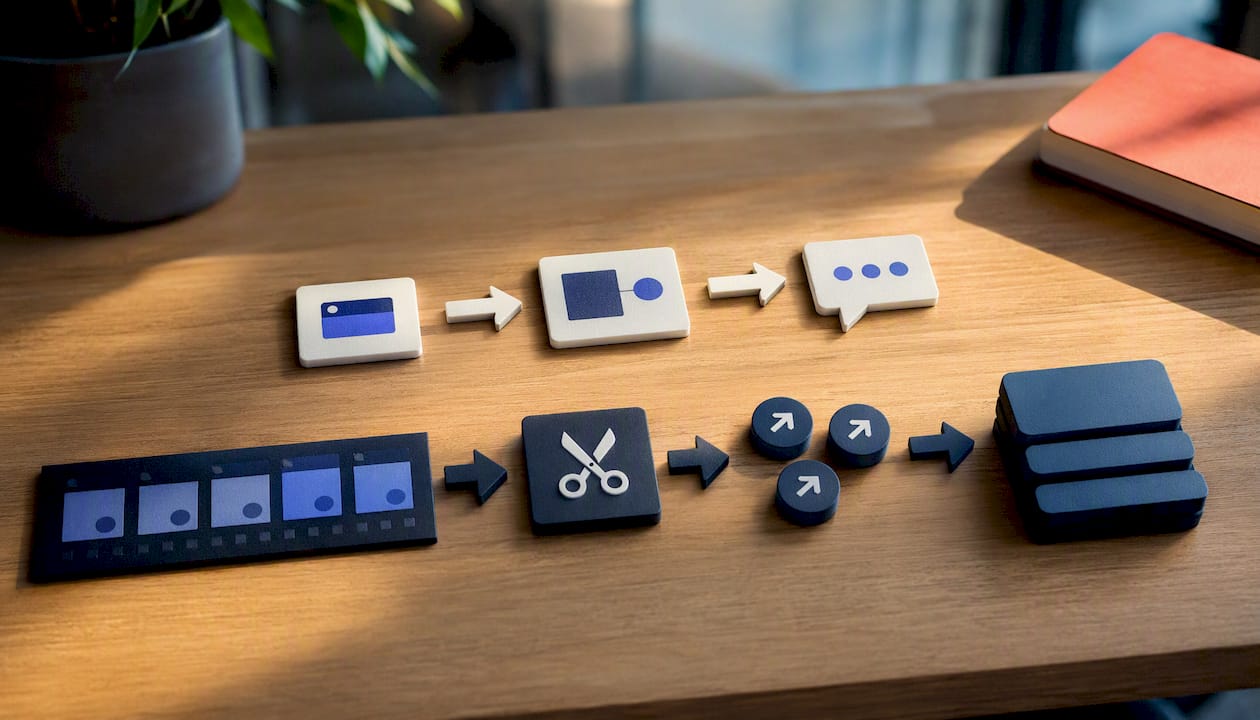
The real cost shows up in maintenance. Video documentation has higher long-term upkeep because UI changes often force a full re-recording, while an annotated screenshot can usually be patched with a quick crop and a new callout.
Searchability tells a similar story. Text and annotated images get indexed and scanned easily; raw video does not, unless you add transcripts or structured metadata.
- Screenshots: small files, easy incremental updates, but need alt text or OCR to be searchable.
- Recordings: richer context, but heavier files and a re-record penalty every time the interface shifts.
- Transcripts close the searchability gap for video, at the cost of extra editing time.
How Teams Should Standardize Their Capture Workflow
Consistency matters more than which tool you pick. A team that captures the same way every time spends less time asking, "wait, what am I looking at?"
- Default to screenshots with pinned comments for quick design or copy reviews.
- Reserve recordings for onboarding, training, and troubleshooting that involves multiple steps.
- Require context with every capture: what page, what browser, what was expected to happen.
- Keep captions short and always link back to the relevant ticket or task.
- When feedback keeps circling the same issue, it's usually a sign the original capture lacked a pixel-level reference point.
That last point is where a lot of review cycles quietly break down. Vague comments like "this looks off" force a second round of screenshots just to locate the problem. A pixel-anchored feedback tool lets reviewers pin a comment directly to the spot in question, which cuts out that back-and-forth entirely. For more on how this plays out across formats, see this practical comparison of screenshot and video feedback.
Why Clarity Should Beat Convenience Every Time
Pick the format that creates the fewest follow-up questions, not the one that's fastest to make. A blurry screenshot or a rambling recording both cost more time than they save. Favor formats you can update without starting over, and when one medium can't carry the full message, use both.
— Pinhub
Give Your Screenshots Precise, Trackable Feedback
Most of the friction in screenshot feedback comes from comments that float in a sidebar instead of pointing at anything specific. Usepinhub fixes that by letting reviewers pin comments directly onto the pixel they're talking about, so nobody has to guess which corner of the screen a note refers to.

Guests can leave feedback without creating an account, version history tracks changes, and AI-generated summaries turn long comment threads into short action lists. If your team is still emailing screenshots back and forth or leaving comments in a chat thread, a pixel-anchored feedback tool can help close that gap. The Free plan works for solo use or light volume, and the Pro plan runs $19 a month (or $180 a year) for teams that need unlimited screenshots and Figma import. Visit the Usepinhub landing page to start a free workspace and see how a pinned comment changes your next review cycle.
Sources
- Screenshots vs screen recording for docs — ScreenGuide
- Screen Recording vs Screen Capture: Key Differences - Zight
- Screenshot — Wikipedia
FAQ
Does the Other Person Know I'm Screen Recording?
On most platforms, screen recording is a local action and the other person isn't notified unless you're on a video call app that shows a recording indicator to all participants.
Does Instagram Say if You Screenshot or Screen Record Someone's Content?
Instagram does not notify users when you screenshot or screen record their posts or stories, though it has tested screenshot notifications for disappearing messages in the past.
How Do I Turn Off Screenshot Recording on My Device?
There's no universal "screenshot recording" toggle. You can restrict screenshot ability only through mobile device management tools or specific app-level settings, since standard OS screenshot shortcuts can't be globally disabled by a regular user.
Is Screen Recording Still Relevant for Modern Teams?
Yes. Screen recording benefits remain strong for tutorials, demos, and bug reproduction where sequence and audio matter, even as quick screenshots continue to dominate fast, single-fact communication.
Should Our Team Standardize on One Format?
No. The strongest workflows use screenshots with pinned comments for quick reviews, like those Usepinhub supports, and reserve recordings for training or multistep troubleshooting.