
Which screenshot Chrome extensions actually deliver in 2026?
The strongest options combine one-click full-page capture, built-in annotation, and flexible export formats. Browser extensions outperform Chrome's native DevTools for everyday use because they handle sticky headers, lazy-loaded images, and PDF export without extra steps. The table below covers many leading tools across the dimensions that matter most for professional and personal workflows.
| Extension | Full Page Capture | Editing Tools | Ease of Use | Privacy Stance | Best For |
|---|---|---|---|---|---|
| GoFullPage | Yes | Basic | Very Easy | Minimal permissions | Simplicity and reliability |
| Screenshot Tool | Yes | Strong | Easy | Standard | Editing and quick sharing |
| Awesome Screenshot | Yes | Strong | Easy | Standard | Screenshot + screen recording |
| Screenshot Tool - Screen Capture & Editor | Yes | Advanced | Moderate | Standard | Professional editing |
| Lightshot | Partial | Basic | Very Easy | Minimal | Fast area selection |
| FireShot | Yes | Moderate | Easy | Local storage only | PDF export and cloud saving |
| Full Page Screenshot, Screen Capture - CocoShot | Yes | Moderate | Easy | Standard | Documentation and archives |
| Marker.io | Yes | Moderate | Moderate | Standard | Dev teams and bug tracking |
| Screenshot Master: Full Page Capture | Yes | Strong | Easy | Standard | Trusted full-page with editing |
| Screenshot YouTube | Partial | Basic | Very Easy | Standard | Video frame capture |
| Screenshot & Screen Recorder | Yes | Moderate | Easy | Standard | Static and video capture |
| Screenshot X | Yes | Basic | Very Easy | Minimal | Fast, lightweight captures |
| Chrome Capture - Screenshot & GIF | Yes | Moderate | Easy | Standard | GIF creation |
| Scrolling Screenshot Tool | Yes | Basic | Easy | Minimal | Long, complex pages |
| Askify | Yes | AI-assisted | Moderate | Standard | AI-powered review |
| Scribe | Yes | Annotation | Moderate | Standard | Process documentation |
| Nimbus Capture | Yes | Strong | Moderate | Cloud sync | Cloud storage and collaboration |
| Web Paint Online | Yes | Drawing tools | Easy | Standard | On-page annotation before capture |
| Screencastify | Yes | Moderate | Easy | Standard | Screen recording and screenshots |
| HTML Elements Screenshot | Partial | Basic | Advanced | Standard | Developer DOM capture |
| Markup Hero | Yes | Strong | Moderate | Standard | Annotation and team sharing |
Core benefits at a glance:
- One-click full-page capture without manual scrolling
- Built-in editors for arrows, text, highlights, and blur
- Export to PNG, JPG, PDF, or clipboard
- Cloud sync and sharing links for team workflows
- Free core features with optional paid upgrades for advanced tools
What do the top extensions actually offer?
GoFullPage remains the gold standard for pure simplicity. One click scrolls the page, stitches it into a single image, and opens it in a new tab ready for PNG, JPG, or PDF download. It requests minimal permissions and has been actively maintained since 2012.

FireShot takes a different approach. It stores screenshots locally so they never leave your computer, which makes it a strong pick for sensitive content. It exports to PDF with live links, PNG, JPEG, and GIF, and can batch-capture all open tabs at once. PCMAG awarded it "Best Free Google Chrome Extension (Full Page Screenshot Tool)."

Nimbus Capture goes further than static images. It records screen video, captures specific regions or full pages, and syncs everything to cloud storage. Teams that need both image and video documentation in one place tend to land here.
Extensions handle complex pages better than DevTools because they wait for network activity to settle and programmatically manage sticky headers and parallax elements. Chrome's built-in tool, accessed via Ctrl+Shift+P and "Capture full size screenshot," works for quick developer captures but fails on dynamic layouts.
Specialized tools worth knowing:
- Marker.io connects screenshots directly to Jira, Trello, and GitHub, so bug reports include the visual context automatically.
- Scribe records each step you take on screen and turns it into an annotated guide, useful for onboarding documentation.
- Chrome Capture adds GIF creation to the mix, letting you record short animated clips alongside static captures.
- HTML Elements Screenshot targets specific DOM nodes rather than full pages, which developers use for component-level testing.
- Askify layers AI analysis on top of captures, surfacing feedback suggestions after you take a screenshot.
Built-in annotation editors cut the feedback loop significantly. Editing immediately after capture, without opening a separate image editor, removes friction from review workflows.
What permissions do screenshot extensions actually need?
Most screenshot extensions request permission to read and change data on websites. That access is technically required to scroll the page and capture the full DOM. The risk is real: a poorly vetted extension with broad permissions could read form data or inject scripts.
Google now requires Chrome Web Store extensions to meet updated privacy standards, including clear disclosure of what data is collected and why. Extensions that carry Google's "good record" label have passed additional review. Checking that label before installing is a reliable first filter.
Before installing any extension, verify:
- Permissions listed match what the tool actually needs (a screenshot tool should not need access to your browsing history)
- The developer has a published privacy policy
- The extension has recent updates and active user reviews
- Data processing happens locally, not on a third-party server
Pro Tip: Open chrome://extensions after installing, click "Details" on any extension, and review the "Permissions" tab. If you see access to all site data combined with no privacy policy, remove it.
FireShot and GoFullPage both process captures locally. Nimbus Capture syncs to the cloud, which is useful for teams but means your screenshots leave the browser. Web Paint Online annotates directly on the live page before capture, so no image data is transmitted until you choose to save.
How do you pick the right extension for your workflow?
The right choice depends on what you do with screenshots after you take them. Frequency, annotation needs, export format, and whether you work alone or with a team each point toward different tools.
Start with these questions:
- Do you need full-page capture or just visible-area grabs?
- Will you annotate, blur, or mark up images before sharing?
- Do you export to PDF for reports, or PNG for design review?
- Does your team need shared access or cloud sync?
- Is privacy a hard requirement (local-only processing)?
For solo users who want zero friction, GoFullPage or Lightshot covers most needs. Lightshot is faster for quick area selections; GoFullPage wins for full-page reliability. If you document processes or build tutorials, Scribe's step-by-step recording saves hours compared to manual annotation.
Teams integrating screenshots into bug reports or design reviews should look at Marker.io for issue tracker integration or Markup Hero for collaborative annotation. Cloud-connected tools like Nimbus Capture reduce the upload-and-share steps that slow down feedback cycles.
Most extensions offer free core capture with paid upgrades for advanced editing, team seats, or cloud storage. Test the free tier against your actual target pages before committing to a paid plan, since not all full-page extensions perform equally on complex web apps.
Pro Tip: Install two or three candidates and run each against your most complex target page. Lazy-loaded content and sticky navigation reveal differences that feature lists never show.
Usepinhub takes screenshot feedback further
Once you have the screenshot, the real work is getting clear feedback on it. That's where most extension workflows hit a wall: you capture the image, attach it to an email or Slack message, and then spend time decoding vague comments like "fix the top part."
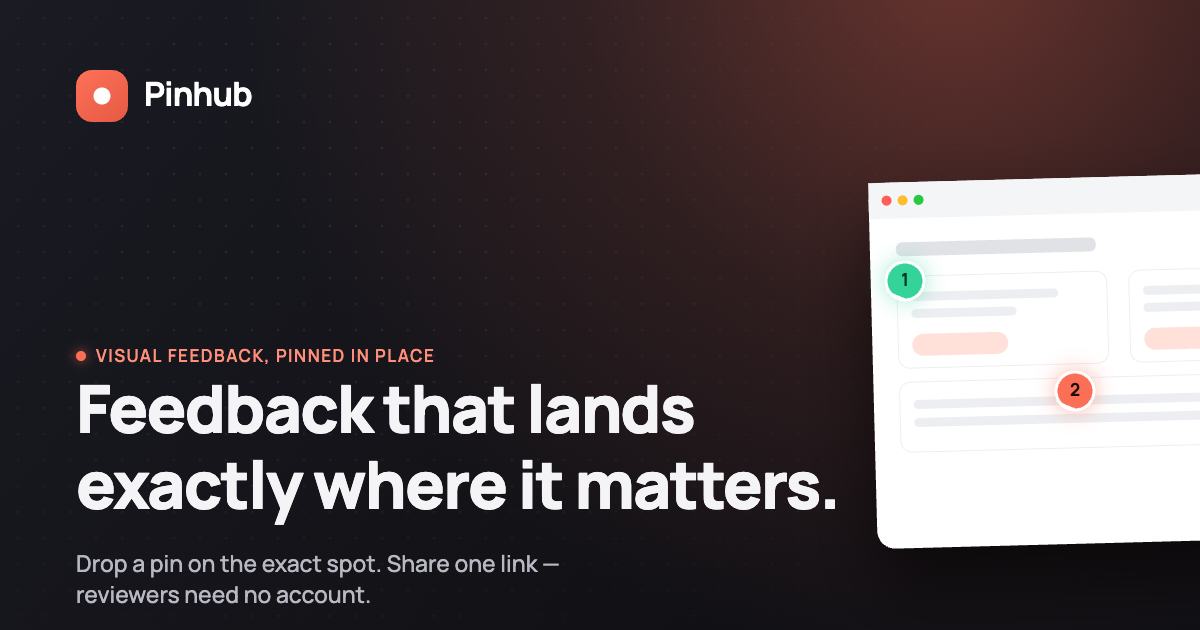
Usepinhub solves that by letting you upload any screenshot and pin comments directly onto specific pixels. Reviewers click the exact spot they mean, type their note, and the thread stays anchored there. No account is needed for guest reviewers, so clients and stakeholders can respond immediately without a signup step. Version control keeps every iteration organized, and AI-powered summaries turn a long comment thread into a clear action list. For teams doing website annotation and review, it replaces the back-and-forth that slows down design and QA cycles. Try Usepinhub alongside your preferred capture extension.
FAQ
Which Chrome extension is best for full-page screenshots?
GoFullPage is the most reliable one-click option for full-page capture, with minimal permissions and consistent performance across most websites. FireShot is the stronger choice when you need PDF export or batch tab capture.
Do screenshot extensions work on Firefox and Edge?
Several extensions, including Nimbus Capture and Awesome Screenshot, publish versions for Firefox and Edge in addition to Chrome. Check each extension's store listing for confirmed browser compatibility.
Are Chrome screenshot extensions safe to use?
Extensions that process captures locally, like GoFullPage and FireShot, carry the lowest privacy risk. Always verify that the permissions listed match the tool's actual function, and prefer extensions that follow Google's privacy standards for the Chrome Web Store.
Can I capture screenshots without installing an extension?
Yes. Chrome's built-in DevTools let you capture a full-page screenshot by pressing Ctrl+Shift+I, then Ctrl+Shift+P, and typing "Capture full size screenshot." The method works well for simple pages but struggles with sticky headers and lazy-loaded images that extensions handle automatically.
What is the difference between free and paid screenshot extensions?
Free tiers typically cover core capture features, while paid upgrades add advanced editing, team collaboration seats, cloud storage, and higher export quality. Most users find the free tier sufficient for personal use; teams usually need a paid plan for shared workflows.
Key Takeaways
The best screenshot Chrome extensions combine full-page capture, built-in annotation, and local privacy controls to outperform Chrome's native DevTools for professional workflows.
| Point | Details |
|---|---|
| Extensions beat DevTools | One-click capture handles sticky headers and lazy-loaded images that DevTools misses. |
| Privacy check first | Verify permissions match the tool's function; prefer local-processing extensions like GoFullPage or FireShot. |
| Match tool to workflow | Solo users need simplicity; teams need cloud sync, annotation, or issue tracker integration. |
| Free vs. paid | Free tiers cover basic capture; paid plans add team seats, cloud storage, and advanced editing. |
| Usepinhub for feedback | Upload any screenshot to Usepinhub and pin pixel-level comments for faster, clearer team review. |