
Adopt one system: a project-first template for every job, a separate asset library for reusable material, and a single naming pattern with zero-padded versions and ISO dates. It wins for designers because files stay searchable, handoffs stay predictable, and each project stays compact. Start today with two actions: apply the template to your next project, and drop a README into it that documents your naming rules.
TL;DR:
- Each project keeps one current working file in Source, with superseded files in Archive; Figma uses one feature per file and pages for stages.
- Use versions such as v01, and increment only when content changes; reexports keep the same number, while dated deliverables lead with YYYYMMDD.
- During migration, move active files and finished deliverables first, preserve old masters untouched in Archive, and quarantine unidentified files for a scheduled review.
- Keep handoffs and archives consistent, but allow looser naming during exploration; record any exception in the README so teammates can understand it later.
Table of Contents
- Which folder trees can you copy today?
- What file naming and versioning pattern should you use?
- How do Figma files and pages map to your folders?
- What principles keep a folder system usable?
- How do you migrate a messy archive into the template?
- How do you keep the whole team on the system?
- When should you loosen the rules?
- How does Pinhub fit alongside your folder structure?
- FAQ
- Sources
Which folder trees can you copy today?
Use two trees: one per project, one shared library. Keeping them apart means a client job never gets buried under fonts, icons and mockups you reuse everywhere.

Here is the project template, adapted from a practical folder template that designers use:
ClientName_ProjectName/
  01_Brief/
  02_Source/
  03_Assets/
  04_Exports/
  05_Reference/
  06_Archive/
  README.txt
- 01_Brief: the contract, scope, questionnaire answers and kickoff notes.
- 02_Source: the one current working file, and nothing else.
- 03_Assets: images, logos and copy supplied by the client or purchased for this job.
- 04_Exports: deliverables, such as PNGs, PDFs and handoff packages.
- 05_Reference: moodboards, competitor screenshots, research.
- 06_Archive: every superseded version of the Source file.
The shared asset library follows the same logic: Icons, Fonts, Templates, Mockups, Textures and Stock. Keep the hierarchy shallow, with only a limited number of nested levels. UW-Madison Libraries advise limiting top-level folders and nested levels and creating archive folders for past work, which narrows what you have to search.
Two variants cover most teams:
- Freelancer: collapse 05_Reference into 01_Brief and keep the other numbered folders.
- Product team: replace the client name with an epic or feature name, so one project folder maps to one feature.
The rule that keeps this honest: Source holds the current file, Archive holds the past. If you find yourself opening two files in Source to see which is newer, move one out.
What file naming and versioning pattern should you use?
Pick one pattern and never improvise. This one works for most design work:
[project]_[asset-type]_[descriptor]_[size]_[status]_v[##].[ext]
A real example: acme_homepage_hero_review_v03.fig. When date order matters more than version order, such as meeting decks or dated deliverables, lead with the date instead: YYYYMMDD_acme_homepage_hero_v03.png.
- Zero-pad versions. Write v01, v02, v10, so files sort correctly. Harvard's data management guidance recommends zero-padded sequential numbers and ISO 8601 dates (YYYYMMDD) when date sorting matters.
- Increment only for content changes. A re-export of the same design stays at the same version. A changed layout, copy or color earns the next number.
- Retire "final". Michigan Medicine's revision guidance favors numeric suffixes over subjective labels like "final" or "draft," because numbers keep a clear, searchable history.
- Keep characters safe. No spaces or special characters. Use alphanumerics, hyphens and underscores, and stay under roughly 40–50 characters, as Harvard's README guidance advises.
- Move old versions. When v03 becomes the working file, v02 goes to 06_Archive.
Status words in filenames age badly. Once a tool can hold that information, UW–Madison's research data guidance suggests moving status into searchable metadata and relying on version history. Our piece on design version control goes deeper on that split.
Pro Tip: Put the most searchable element first. If you hunt by client, lead with the client; if you hunt by date, lead with the date. Never mix the two in one project.
How do Figma files and pages map to your folders?
Figma has its own hierarchy, and it is flatter than a filesystem. Figma's help center describes teams, then folders (called projects), then files, and files do not nest subfolders the way a drive does. So the structure you control lives inside the file, on its pages.
Mantlr's write-up of senior designers' habits describes a canonical five-page layout, with one feature per file and component libraries kept in separate files:
- Cover: a thumbnail, title, owner and status, so the file explains itself in the file browser.
- Archive: retired frames and old directions, kept for reference.
- Reference: research screenshots, specs and brand notes that inform the work.
- Exploration: rough ideas and options that are not yet commitments.
- Production: the approved screens developers build from.
The mapping to your filesystem is direct. A Figma project corresponds to the client or product folder. A Figma file corresponds to 02_Source, one file per feature. The Production page is what you export into 04_Exports, and the Archive page mirrors 06_Archive. Keep research and handoff material in their own small files rather than inside feature files, because focused files are easier to open, search and share. For versioning habits inside Figma itself, see our notes on Figma versioning best practices.
If your team also manages media-heavy projects, Posthive's workspace structure guidance offers a useful parallel on project and workspace hierarchy.
What principles keep a folder system usable?
Templates break when people bend them without a rule. These principles let you adapt without losing predictability.
- Stay shallow. Limit nested levels. Depth hides files; breadth inside a level is cheap to scan.
- Group by function, not file type. A folder called "PSDs" tells you nothing about what is inside. UW-Madison Libraries recommend grouping by similarity or function and balancing breadth against depth.
- Use the same logic in every branch. If one project sorts by deliverable, they all do.
- Avoid repeating yourself. The Smithsonian's file naming guide lists avoiding semantic repetition between file and directory names among its five precepts. A file inside
Acme_Website/does not need "acme_website" spelled out three times. - Document the rules. Put a README.txt in each project and keep one central guide for the team.
- Use stage folders when review matters. WIP, Review and Shipped make status visible at a glance, and they give you a natural place to set access.
Pro Tip: Run a quick card-sorting session before you finalize a template. The Caltech Research Data Management Workbook describes the exercise: write file types on cards, group them as your team thinks about them, and name the groups. It produces a hierarchy people actually follow.
How do you migrate a messy archive into the template?
You do not need to rename everything by hand. Work in this order:
- Audit first. Work with the team to group existing files into natural clusters, and write the results into a migration README.
- Move current work into Source. Put live working files in 02_Source and finished deliverables in 04_Exports.
- Preserve old masters. Place them in 06_Archive, in a subfolder such as _UNZIPPED, with originals untouched.
- Rename by priority. Batch-rename with a script or your operating system's bulk rename tool where patterns are clear. Otherwise start with active clients and log every change in a changelog CSV.
- Quarantine the unknown. Keep a temporary To-classify folder and review it in a scheduled cleanup pass.
How do you keep the whole team on the system?
The system survives on small, boring habits:
- Store one starter folder and one README in a central place everyone can copy from.
- Give new hires an onboarding checklist: where templates live, the naming rules, how to archive, how to version.
- Automate lightly: saved folder zips, cloud-folder rules, a script that creates the tree, a scheduled audit.
- Match permissions to stage folders, so stakeholders see Review and Shipped but not raw WIP.
When should you loosen the rules?
Be strict where files outlive the project: handoffs, deliverables and long-term archives. Be looser in exploration, where a messy sketch file harms no one. The mistake we see most often is inventing a new convention on the spot. Write the exception into the README instead, so the next person knows why it exists. Start with the smallest system your team will actually follow, change it deliberately, and record each change.
— Pinhub
How does Pinhub fit alongside your folder structure?
A tidy folder tree stops being tidy when vague feedback spawns extra versions in Source and Exports. Pixel-anchored comments cut that noise, because reviewers point at the exact spot instead of describing it. For a wider look at the process, read our creative review workflow playbook.
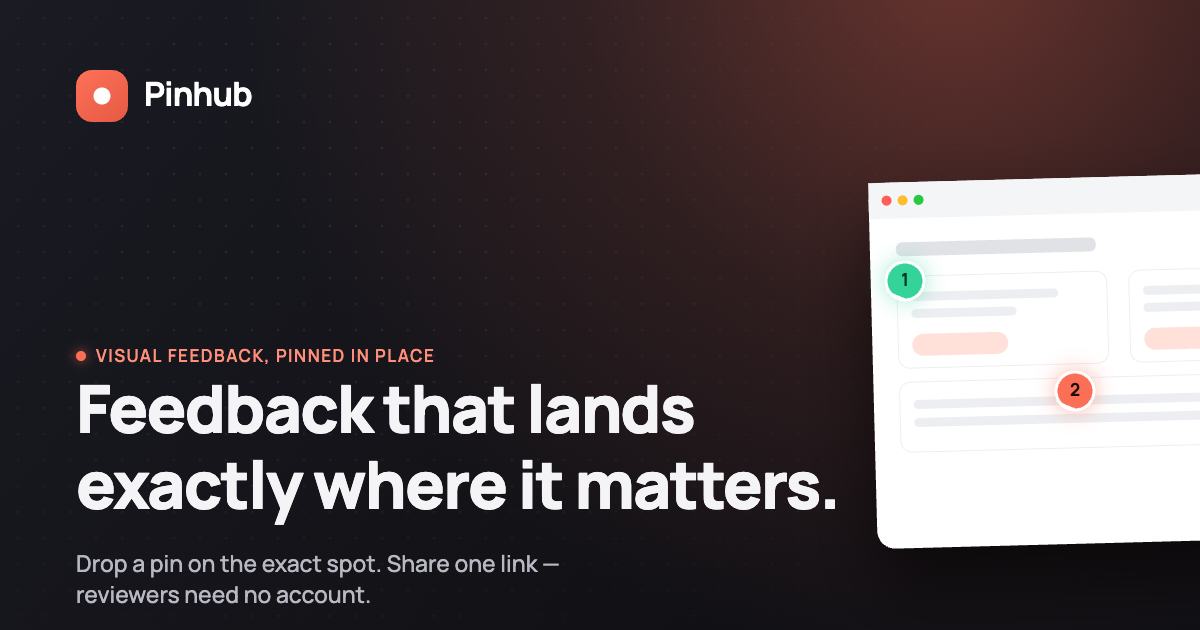
The workflow is simple: keep masters in your template, export screenshots or Figma designs into Pinhub, resolve the threads, then export the approved final to 04_Exports. Here is what helps along the way:
- Guest reviewers can comment without creating accounts.
- Threaded pin comments stay attached to the screen location they discuss.
- Version history keeps each review round traceable.
- AI summaries turn feedback into a clear list of changes.
Our free plan covers solo and low-volume work, so you can try the workflow on your next project folder. Pro is $19 per month and Team is $39 per month, both listed on our site.
FAQ
What is a file directory structure?
It is the way folders and subfolders are arranged to hold files, from a top-level folder down to individual documents. A good one uses predictable, consistent logic, so you can find a file without searching. UW-Madison Libraries recommend grouping by function and keeping nesting limited.
What are some best practices for folder organization?
Keep hierarchies shallow, group by function rather than file type, and use the same logic in every project. Add a README that documents naming rules, and move old versions into an archive folder. Harvard's guidance on README files supports documenting conventions inside each project.
How should I name design files and versions?
Use one pattern, no spaces, and zero-padded version numbers such as v01 and v02. Avoid words like "final" that stop meaning anything after the next revision. Lead with an ISO date when chronological sorting matters.
How many folder levels is too many?
Deep hierarchies can make files harder to find and paths longer. If you need more depth, split the project or rely on filenames and metadata instead. Shallow trees with clear names are quicker to scan than deep ones.
Sources
- Az
- Datamanagement
- Lesson 2: File Naming & Organization | UW-Madison Libraries
- Guide to files and projects – Figma Learn - Help Center