
Figma requires you to sign in before leaving a comment on a file or a prototype, based on official community guidance. FigJam's open session feature is the one exception, letting guests interact without logging in, but that behavior does not carry over to Figma prototypes. We will walk through the platform's limits, three practical workarounds, and a direct solution we built for guest commenting.
TL;DR:
- Viewer or editor access, open sharing, and password protection do not enable anonymous comments on Figma files or prototypes; only FigJam open sessions allow guests.
- For precise feedback, export PNG or PDF screens to an anchored review tool; video and screenshots are quicker but produce less structured notes.
- Begin client reviews with exported designs and a guest link, then move approved direction into Figma; use password protection or expiring links for confidential work.
- Export frames at 2× resolution so reviewers can zoom in on small interface details without losing comment accuracy.
- Pinhub supports screenshot uploads and direct Figma imports, with anchored guest comments and a free plan; Pro costs $19 monthly.
Table of Contents
- How Figma treats comments: files, prototypes, and FigJam open sessions
- Workarounds: three practical ways to collect comments without forcing Figma accounts
- How Pinhub handles guest reviewers and why it's a direct solution
- Publisher perspective: when to require Figma accounts and when to use guest-review workflows
- Quick start with Pinhub: try guest commenting without accounts
- FAQ
- Sources
How Figma treats comments: files, prototypes, and FigJam open sessions
Figma separates its products into distinct commenting rules, and mixing them up is the most common source of confusion for teams sharing work with clients.
A 2024 community reply confirms that comments cannot be added to a file or prototype without signing in and creating a Figma account first. That rule applies regardless of whether the viewer has an edit link, a view-only link, or a password-protected share. FigJam's open session is different: it lets guests join a whiteboard session and interact without an account, but that permission model belongs to FigJam specifically and was never extended to Figma prototypes.
A few distinctions matter when you're troubleshooting permissions:
- Viewer versus editor roles control what a signed-in user can do, but they don't bypass the sign-in requirement itself.
- Share settings can restrict or widen who sees a file, but they can't turn on anonymous commenting.
- FigJam sessions allow guest participation, while Figma prototypes and design files do not inherit that same openness.
Community discussion from 2022 on viewer permissions reinforces this: even generous sharing settings stop short of letting an anonymous guest post a comment.
Workarounds: three practical ways to collect comments without forcing Figma accounts
If sign-in is a hard blocker for your reviewers, you have a few paths that avoid asking clients to create an account just to leave feedback.
- Export and use a guest-friendly review tool. Export your screens or flows as PNG or PDF files, upload them to a tool built for anchored commenting, and send guests a link. Reviewers click directly on the design to leave notes, no login required, and you reconcile the feedback back into Figma afterward. Effort is low and most tools in this category offer a free tier.
- Use a plugin that opens a shareable review surface outside Figma. Several Figma plugins export frames to an external review link that guests can comment on without touching Figma's native permissions. Setup takes a few minutes, reviewer experience is similar to clicking a shared doc, and pricing ranges from free to a modest monthly fee depending on the plugin.
- Record a walkthrough video or share an annotated screenshot. A short, time-stamped video or a screenshot dropped into a shared doc lets non-technical stakeholders respond in a comment thread they already know how to use. It's the fastest setup, free in almost every case, but it produces less precise, less structured feedback than a pixel-anchored tool.
Each option trades some combination of fidelity, setup time, and cost, so the right pick depends on how precise your feedback needs to be and how technical your reviewers are.
Pro Tip: Export your Figma frames at 2x resolution before sharing them externally, so guest comments stay accurate even when reviewers zoom in on small UI details.

How Pinhub handles guest reviewers and why it's a direct solution
We built Pinhub specifically for teams that need precise, anchored feedback from people who shouldn't have to sign up just to answer a question about a button placement.
Here's what the workflow looks like in practice:
- Upload a screenshot or import directly from Figma into a Pinhub workspace.
- Pin comments to points on the design so feedback is precise and clear.
- Share a guest link that lets reviewers comment without signing in.
- Resolve comment threads, track version history, and generate summaries of open items.
- Optionally protect shared links with a password before sending them externally.
Guest reviewers can comment on Pinhub without creating an account, which removes the sign-in barrier that blocks anonymous commenting on Figma prototypes, according to our Usepinhub.
A typical quick-start takes a few minutes: create a workspace, upload your export or Figma import, share the guest link, collect comments as they come in, then export a summary or task list for your next sprint. For teams that have struggled with the back-and-forth of exported screenshots and email threads, this consolidates everything into one anchored, trackable view. Our case study on guest reviews without accounts walks through the setup in more detail, and the free plan is enough to test it on your next client round.
Publisher perspective: when to require Figma accounts and when to use guest-review workflows
Not every review needs the same setup. For internal design reviews among a small team, requiring Figma accounts is fine since everyone already has one and the native commenting tools work well.

Client approvals and larger stakeholder groups are a different story. Asking a marketing director or a client's legal team to create a Figma account just to say "move this button" adds friction that slows down approvals. Early-stage feedback from non-design audiences, like a first round of concept reactions, benefits even more from a low-barrier export-and-guest-link approach.
Our default recommendation: start early client rounds with an export plus a guest link, then consolidate approved direction back into Figma for iteration. If confidentiality matters, use password protection or expiring links on any guest-facing share.
— Pinhub
Quick start with Pinhub: try guest commenting without accounts
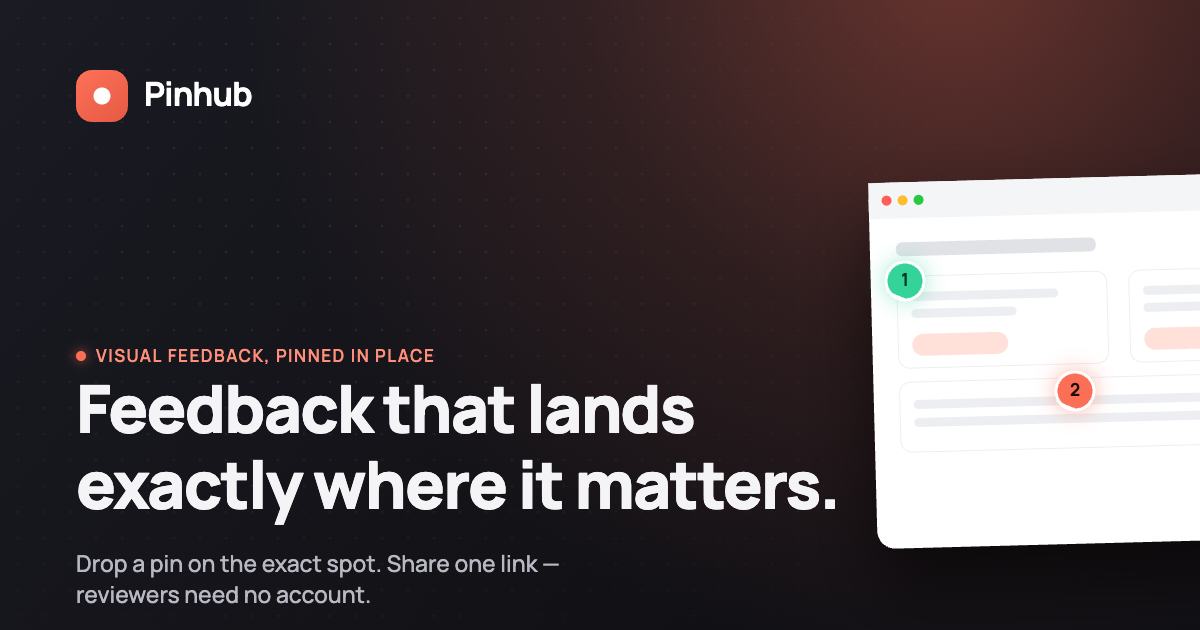
We built Pinhub so design feedback doesn't stall while a client figures out how to create a Figma account. Pixel-anchored comments and guest reviewer access mean your next approval round can start today.
Here's how to get going:
- Sign up for a free Pinhub workspace.
- Upload a screenshot or import your design directly from Figma.
- Share a guest link and invite reviewers to comment, no account needed on their end.
Our design feedback templates can help you turn those comments into a clear task list once feedback starts rolling in. If you're coordinating reviews across a larger team with web development handoffs, the structured workflow advice from Coleman Web Design is worth a look too. Visit Usepinhub to start on the free plan, or move to Pro at $19 per month when you need more workspace members and unlimited screenshots.
FAQ
How to use Figma without login?
You can view a shared Figma file or prototype without logging in, but commenting requires signing in to a Figma account. FigJam open sessions are the exception, letting guests participate without an account.
How do I comment on a Figma design?
Open the shared file or prototype, sign in to a Figma account if prompted, then click anywhere on the canvas to drop a comment pin. If you want reviewers to skip the sign-in step, export the design and collect feedback through a guest-friendly tool instead.
Why are designers leaving Figma?
Some designers look for alternative review tools because guest commenting without an account has been a long-requested feature that native Figma still doesn't support for files and prototypes. This gap pushes teams toward exported reviews or dedicated feedback platforms for client-facing rounds.
How do I comment on Figma Live?
Figma Live sessions follow the same sign-in rules as standard files and prototypes for commenting, while FigJam's open session format is the one product area built for guest interaction without an account. Check your specific share settings, since permissions can vary between view-only and editor-level links.
Can clients leave feedback on a Figma prototype without an account?
No, clients need a Figma account to comment directly on a prototype, based on current platform behavior documented in community discussions. A guest-review tool or exported screenshot workflow lets clients respond without that account requirement.
Sources
For readers who want to verify the platform behavior or explore a guest-review setup further, our guest feedback case study covers a full walkthrough, and remote review structuring advice from Bissig offers another perspective on client approval workflows.
- Comment prototypes without an account / Start open session | Figma Forum