
A design changelog is a curated, chronologically ordered record of every notable visual and component change in your design system, including what changed, why, who approved it, and a direct link to the affected file. To start one this afternoon: capture a screenshot or Figma snapshot of the current component state, create a log entry with a unique ID (e.g., DS-001) and an ISO 8601 date (2026-06-15), then share the link with your dev team via a tool like Usepinhub so feedback is anchored to the exact pixel that changed.
Three quick actions to get started:
- Capture a snapshot of the component or screen before any change goes live.
- Create a log entry with a unique ID, ISO 8601 date, change type, and a concise description of what changed.
- Share the link with developers and stakeholders so they can comment on the exact change, not a vague Slack message.
Key Takeaways
A design changelog is only as useful as the discipline behind it: a clear template, a consistent owner, and a versioning scheme tied to impact level are the three things that make it stick.
| Point | Details |
|---|---|
| Start with a template | Use the mandatory fields (ID, ISO 8601 date, change type, impact level, Figma link) from day one. |
| Adopt semantic versioning | Map MAJOR.MINOR.PATCH to breaking, additive, and cosmetic changes using semver.org as the reference. |
| Automate snapshot capture | Use a Figma plugin or GitHub action to generate property-level diffs and push entries automatically. |
| Assign a changelog owner | One person reviews, approves, and publishes entries weekly; without an owner, the log goes stale. |
| Usepinhub for visual evidence | Capture versioned screenshots with anchored comments and share them as the visual proof in each entry. |
Table of Contents
- What is a design changelog, and how does it differ from release notes?
- Why maintain a changelog for your design system
- Practical changelog structure: fields every entry should include
- Types of changes and a small taxonomy to tag entries
- Versioning your changelog: semantic-style guidance for design updates
- Where to publish your changelog and how to keep it discoverable
- Automating changelogs and visual diffs: practical tools and patterns
- How to keep the changelog healthy: ownership, cadence, and review
- Copy-paste templates and short example entries
- [2.1.0] — 2026-06-15
- Research-driven insight on visual-diff automation and design intent
- A practitioner's perspective on running a design changelog
- Pinhub fits naturally into your changelog workflow
- Sources
- FAQ
What is a design changelog, and how does it differ from release notes?
Keep a Changelog defines a changelog as a curated, human-readable file containing a chronologically ordered list of notable changes for each version of a project. For design systems specifically, it lives at the component or token level, not the product level.
Here is where teams get confused about which document to reach for:
- Design changelog: Component-level record for designers and developers. Covers what changed in a button's padding, a color token's hex value, or a modal's animation timing. Written as changes happen.
- Release notes: Product-level summary for end users or stakeholders. Covers what a new version of the product or system delivers. Written at release time.
- Version history (VCS/Git log): A raw commit-by-commit record generated automatically. Useful for engineers tracing code, but rarely readable by designers or product managers without filtering.
The dimension most teams skip is intent. A Git log tells you a border-radius changed from 4px to 8px. A changelog entry tells you why: accessibility audit flagged the old value as visually inconsistent with the updated card component. That "why" is what prevents the same decision from being relitigated six months later.
Why maintain a changelog for your design system
A structured design update log prevents the "memory gap" that grows as design teams scale. When a new engineer joins and asks "why does this button have two different hover states?", the answer should be one search away, not a Slack archaeology expedition.
The operational benefits are concrete:
- Faster handoffs: Developers see exactly which tokens or components changed between versions, so they know what to update in code without a full design review.
- Fewer "which version?" questions: A stable permalink to the changelog entry, with a Figma deep link, ends the back-and-forth immediately.
- Clearer prioritization: Impact levels in each entry let engineering triage breaking changes before cosmetic ones.
For teams and audits, the gains compound. A searchable changelog creates accountability (every change has an owner), provides evidence for design decisions during stakeholder reviews, and gives QA a reference point for regression testing. When a compliance audit asks why a color contrast ratio changed, you have a timestamped, approved record.
Pro Tip: When pitching a changelog to your manager, frame it as a decision audit trail, not a documentation task. Teams that maintain one spend less time in "why did this change?" meetings and more time shipping.
Practical changelog structure: fields every entry should include
Every entry in your design iteration log should answer six questions: what changed, when, where, why, who touched it, and what is the impact. Here is a compact template you can copy into a Markdown file or a Notion database today.
Mandatory fields per entry:
ID— unique smart code (e.g.,DS-042)Date— ISO 8601 format (YYYY-MM-DD)Platform— Web, iOS, Android, or AllChange Type— Added / Changed / Deprecated / Removed / FixedImpact Level— Low / Medium / High / BreakingDescription— one to two sentences: what changed and whyFigma Deep Link— direct URL to the affected frame or componentRequested By— name or teamImplemented By— designer nameApproved By— design lead or system owner
Example entry:
| Field | Value |
|---|---|
| ID | DS-042 |
| Date | 2026-06-15 |
| Platform | Web |
| Change Type | Changed |
| Impact Level | High |
| Description | Updated color-primary-500 token from #1A73E8 to #1558B0 to meet WCAG AA contrast on white backgrounds. Affects all primary buttons and links. |
| Figma Deep Link | figma.com/file/…/node-id=42 |
| Requested By | Accessibility team |
| Implemented By | J. Park |
| Approved By | Design system lead |
For teams exporting to code, Figma plugin tools like alavesa/changelog can generate Markdown, JSON, or CSV from snapshot comparisons, so the fields above map directly to structured export columns.
Pro Tip: Build your ID scheme as a smart code: prefix + zero-padded number (e.g., DS-001, BTN-003, TOK-017). Prefixes by component family make entries searchable by scope without opening a filter.
Types of changes and a small taxonomy to tag entries
Consistent tagging is what makes a design audit trail searchable. Borrow the five canonical types from Keep a Changelog and map them to design-system events:
- Added — a new component, token, or pattern enters the system. Example: a new
Tooltipcomponent added to the library. - Changed — an existing component or token is modified without removing it. Example:
spacing-mdtoken updated from16pxto20px. - Deprecated — a component or token is flagged for future removal. Teams should migrate now; it still works today. Example:
Button--legacymarked deprecated in favor ofButton v2. - Removed — a component or token is deleted from the system. Example:
Icon--arrow-oldremoved after migration window closed. - Fixed — a bug or unintended behavior is corrected. Example:
Modalfocus trap repaired for keyboard navigation.
Mapping tags to impact levels helps engineering triage. A Fixed entry is almost always Low or Medium. A Removed entry is almost always Breaking. A Changed entry on a widely used token (like a primary color) is High even if the visual delta looks small, because it touches every component that references that token.
Versioning your changelog: semantic-style guidance for design updates
Semantic Versioning uses a MAJOR.MINOR.PATCH scheme that translates cleanly to design systems when you remap the three levels:
- MAJOR — breaking changes to component APIs or token contracts that require developer migration. Example: renaming
color-brandtocolor-primaryacross all tokens. - MINOR — non-breaking additions or changes that are backward compatible. Example: adding a new
size-xlvariant to the Button component. - PATCH — cosmetic fixes or corrections that do not affect component behavior or token references. Example: correcting a typo in a component description or adjusting a shadow value by
1px.
Three common versioning approaches, compared:
| Approach | Format | Best for | Drawback |
|---|---|---|---|
| Semantic (semver) | 2.1.0 | Component libraries with dev consumers | Requires discipline to classify changes correctly |
| Calendar | 2026.06 | Marketing or product design teams | Gives no signal about change severity |
| Incremental | v42 | Small teams or early-stage systems | No hierarchy; all changes look equal |
For most design systems that ship to engineering, semantic versioning wins. It communicates severity at a glance. A jump from 2.0.0 to 3.0.0 tells a developer to read the migration notes before updating. A jump from 2.0.0 to 2.1.0 signals they can update safely.
Pro Tip: Start at 1.0.0 only when your system is stable enough for external consumers. Internal-only systems can begin at 0.x.x to signal that breaking changes are still expected.
Where to publish your changelog and how to keep it discoverable
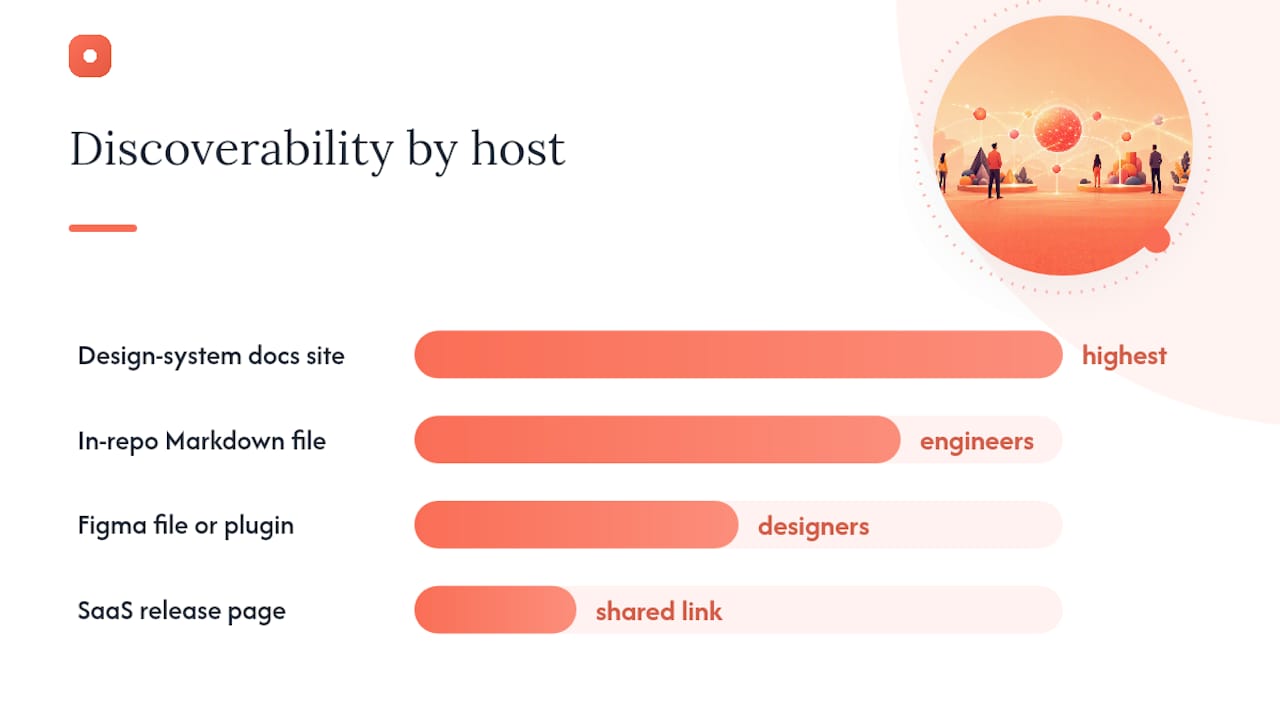
A changelog no one can find is a changelog no one reads. Zeroheight's guidance on design-system changelogs recommends embedding it directly in your design-system documentation site so engineers and stakeholders encounter it in the same place they look up component specs.
Four hosting options, in order of discoverability:
- Design system documentation site (Zeroheight or equivalent) — highest visibility; changelog lives next to component docs and is searchable by the same audience.
- In-repository Markdown file (
CHANGELOG.mdin the design system repo) — version-controlled, diff-able, and readable by engineers without leaving their toolchain. Follows GNU documentation conventions for human-readable entries. - Figma file or plugin tab — useful for designers who live in Figma; some plugins surface changelog entries directly in the design file.
- SaaS release page or shared link — works for client-facing or cross-team announcements; a password-protected shared link (as Usepinhub supports) keeps sensitive design decisions internal.
Discoverability patterns that actually work:
- Use a stable permalink for each version (e.g.,
/changelog#v2-1-0) so you can link directly from Jira tickets or Slack messages. - Apply ISO 8601 timestamps (
2026-06-15) so entries sort correctly in any tool, including spreadsheets and databases. - Embed Figma deep links in every entry so a developer can jump from the changelog to the exact component frame in one click.
- Set up a notification channel (Slack webhook or email digest) that fires when a new entry is published, so stakeholders do not have to check manually.
Pro Tip: Pair your smart-code IDs (DS-042) with a search-friendly naming convention. When a developer searches "DS-042" in Slack, Jira, or GitHub, every related thread surfaces immediately.
Automating changelogs and visual diffs: practical tools and patterns
Manual changelog entry works at small scale. Once your design system covers dozens of components across multiple platforms, automation becomes the only way to keep the log current without burning out your team.
The core automation pipeline has four steps:
- Capture a snapshot of the component or screen at a known state (before a change is merged).
- Compare the new snapshot to the previous one using a visual-diff tool that tracks property-level changes.
- Generate a structured report (Markdown, JSON, or CSV) listing every changed property, its old value, and its new value.
- Push the report to your changelog file, your ticketing system (Jira, Linear), or both.
Figma plugin tools like alavesa/changelog handle steps 1 through 3 directly inside Figma, tracking roughly 30 component properties and producing side-by-side visual previews alongside exportable diff files. GitHub-based changelog automation (conventional commits + changelog generators like standard-version) handles the same pipeline on the code side, so design and engineering logs can stay in sync.
Automation setup checklist:
- Install a snapshot plugin in Figma and configure it to run before every component publish.
- Connect the plugin's export to a GitHub Action or webhook that appends new entries to
CHANGELOG.md. - Map conventional commit prefixes (
feat:,fix:,BREAKING CHANGE:) to semver bump rules so version numbers increment automatically. - Route high-impact or breaking entries to a Slack channel or email list via a webhook.
- Schedule a weekly job to compile individual entries into a rollup summary for stakeholders.
For teams exploring AI-assisted design generation, AI automation can deliver measurable productivity gains for agencies, but the changelog discipline becomes more critical, not less, when AI is involved.
Pro Tip: When AI tools generate multiple design decisions in a single output, resist logging them as one entry. Isolate each discrete change into its own entry so the changelog remains searchable and reversible at the component level.
| Tool / Pattern | What it automates | Export format |
|---|---|---|
| alavesa/changelog (Figma plugin) | Snapshot capture, property diff, versioning | Markdown, JSON, CSV |
| standard-version (GitHub) | Version bumping, CHANGELOG.md generation | Markdown |
| Slack webhook | Notification on new entry | Message |
| Usepinhub | Screenshot capture, anchored comments, version history | Shared link, export |
How to keep the changelog healthy: ownership, cadence, and review
A changelog without an owner goes stale within weeks. Assign three roles before you publish the first entry:
- Owner — one person (usually the design system lead) who is accountable for the log's accuracy and completeness. They approve entries and resolve conflicts.
- Verifier — the designer or developer who implemented the change. They confirm the entry's fields are accurate before it is published.
- Integrator — the person who pushes the entry to the hosted changelog and triggers notifications. On small teams, this is often the same as the owner.
Suggested cadence for web design project management workflows:
- Log on change — every time a component or token is modified, the verifier drafts an entry immediately. Do not wait until the end of the sprint.
- Weekly rollup — the owner reviews all draft entries, checks for missing fields, and publishes the week's changes as a batch.
- Monthly release — compile the month's entries into a versioned release summary with migration notes for any breaking changes.
For high-impact or breaking changes, a brief migration note is not optional. It should include: what changed, what breaks if you do not update, the steps to migrate, and a deadline if one exists. Attach it to the changelog entry and link it from the Jira ticket or GitHub PR so developers cannot miss it.
A lightweight review checklist for each entry:
- ID is unique and follows the smart-code scheme.
- Date is in ISO 8601 format.
- Change type and impact level are correctly classified.
- Description answers "what changed" and "why."
- Figma deep link is valid and points to the correct frame.
- Requested By, Implemented By, and Approved By fields are all filled.
Copy-paste templates and short example entries
Here is a Markdown changelog template you can drop into any repository or documentation site today.
# Design System Changelog

## [2.1.0] — 2026-06-15

### Changed
- **DS-042** | Web | High | Updated `color-primary-500` from `#1A73E8` to `#1558B0`
  for WCAG AA compliance. Affects all primary buttons and links.
  Figma: figma.com/file/.../node-id=42
  Requested by: Accessibility team | Implemented by: J. Park | Approved by: Design lead

### Fixed
- **DS-043** | Web | Low | Corrected `Modal` focus trap for keyboard navigation.
  Figma: figma.com/file/.../node-id=43
  Requested by: QA | Implemented by: A. Chen | Approved by: Design lead
Two example entries in plain form:
Low-impact cosmetic change:
DS-043 | 2026-06-15 | Web | Fixed | Low | Corrected shadow value on Card component from 4px to 3px blur to match updated elevation scale. Figma: [link]. Requested by: Design QA | Implemented by: A. Chen | Approved by: Design lead.
High-impact component change:
DS-042 | 2026-06-15 | Web | Changed | Breaking | Renamed token color-brand to color-primary across all components. Requires a find-and-replace in all consuming codebases before v3.0.0 ships. Migration guide: [link]. Figma: [link]. Requested by: Design system lead | Implemented by: J. Park | Approved by: CTO.
A visual-diff mockup for automation output would show two side-by-side component frames: the left frame labeled "v2.0.0" with the old token value highlighted in red, and the right frame labeled "v2.1.0" with the new value highlighted in green. Below each frame, a property table lists every changed attribute, its old value, and its new value. That output, generated automatically by a Figma snapshot plugin, becomes the visual evidence attached to the changelog entry.
Research-driven insight on visual-diff automation and design intent
DesignTrace research found that GenAI design tools often lack explicit support for reflecting on alternatives. When designers use AI-assisted generation, the tool's output bundles multiple decisions into a single artifact, making it hard to trace which specific choice produced which visual result. Explicit traces, branching, and state tracking measurably improve a designer's ability to reflect on and reuse prior decisions.
That finding has a direct implication for changelog practice. A pipeline that preserves design intent looks like this:
- Capture a snapshot at each meaningful decision point, not just at the end of a session.
- Annotate intent in the entry: record the prompt, seed, or design rationale that drove the change.
- Compare the new snapshot to the previous state using a property-level diff tool.
- Export a structured diff (JSON or Markdown) that lists each changed property with its old and new value.
- Attach the diff to the relevant ticket in Jira or Linear so developers have the visual evidence alongside the implementation spec.
This pipeline is also where UX design best practices for handoffs converge with changelog discipline: the changelog entry becomes the single source of truth that connects the design decision to the implementation ticket.
Pro Tip: When using AI-assisted generation, capture the prompt or seed value as a field in your changelog entry. Six months later, that field tells you exactly what input produced the output, so you can reproduce or modify it without starting from scratch.
A practitioner's perspective on running a design changelog
The hardest part of a design changelog is not the template. It is the habit. Most teams start with good intentions and a clean Markdown file, then fall behind the moment a sprint gets busy. The entries pile up as mental debt, and by the time someone tries to reconstruct the history, half the context is gone.

What actually works day-to-day is making the log entry the last step of every design task, not a separate documentation task. When a designer closes a Figma component after a change, the next action is opening the changelog and adding the entry while the context is fresh. That discipline, more than any tool or template, is what keeps the log current.
Smart-code IDs earn their value in search. When a developer files a bug and references DS-042 in the Jira ticket, every related Slack message, PR, and changelog entry surfaces in one search. That cross-referencing is what turns a changelog from a document into a decision database.
The changelog also changes how design reviews run. When a design review opens with "here is what changed since last week and why," the conversation moves faster. Stakeholders spend less time orienting and more time giving useful feedback. Developer handoffs follow the same pattern: the changelog entry, with its Figma deep link and impact level, replaces the verbal briefing.
Common friction points to expect: designers forgetting to log small changes, disagreements about whether a change is "Changed" or "Fixed," and version numbers that drift out of sync with the code repo. None of these are fatal. A weekly owner review catches most gaps, and a shared taxonomy document resolves the tagging disputes.
Pinhub fits naturally into your changelog workflow
Tracking a design changelog means capturing the before state, anchoring feedback to the exact pixel that changed, and keeping a versioned record that developers can act on. Usepinhub does all three in one place: upload a screenshot or Figma design, pin comments directly onto the changed area, and share a versioned link that guests can review without creating an account.
Applied to a changelog workflow, Usepinhub fits at three points:
- Capture the snapshot before a change is merged, upload it to Usepinhub, and pin a comment noting the component ID and change type.
- Export or link the versioned screenshot as the visual evidence in your changelog entry, replacing a vague Figma link with a direct, comment-anchored view.
- Share with developers via a password-protected link so they see exactly what changed, with feedback already threaded and resolved as a checklist.
For teams managing structured design feedback across multiple reviewers, Usepinhub's AI summary condenses pinned comments into a clear action list, so the changelog entry writes itself from the resolved threads. Start your free workspace on Usepinhub and capture your first changelog snapshot today.
Sources
These are the references worth bookmarking as you build and maintain your design version history:
- Semver
- Keep a Changelog
- DesignTrace: Exploring, Iterating and Tracking Design Alternatives with GenAI
FAQ
What is a design changelog?
A design changelog is a structured, chronologically ordered record of every notable change to a design system's components, tokens, or patterns, including what changed, why, who approved it, and a link to the affected file.
How is a design changelog different from a Git commit history?
A Git log records every code change automatically but is rarely readable by non-engineers. A design changelog is curated, written in plain language, and includes the intent behind each change, not just the mechanical diff.
What versioning system should a design system use?
Semantic versioning (MAJOR.MINOR.PATCH from semver.org) is the most practical choice. Map MAJOR to breaking component API changes, MINOR to non-breaking additions, and PATCH to cosmetic fixes.
How often should a design changelog be updated?
Log entries immediately after each change, run a weekly owner review to catch gaps, and compile a versioned release summary monthly. Waiting until the end of a sprint means losing the context behind each decision.
Can Usepinhub help manage a design changelog?
Yes. Usepinhub captures versioned screenshots, lets reviewers pin comments on the exact changed area, and shares password-protected links with developers, giving each changelog entry a visual proof layer that a Figma link alone cannot provide.